Your Profile
User profile is your own staff account. It is not a Client record and not another person’s Member Detail on Members.
Open from the Header
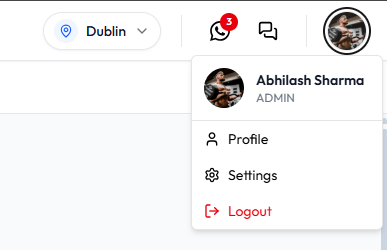
- Click your photo in the header.
- Click Profile.
The menu shows your photo, name, and role. Example: Daniel Murphy and ADMIN, working in Dublin, Ireland.
Open from Settings
- Click your photo, then Settings.
- Under Account (Your personal profile and security.), click Profile.
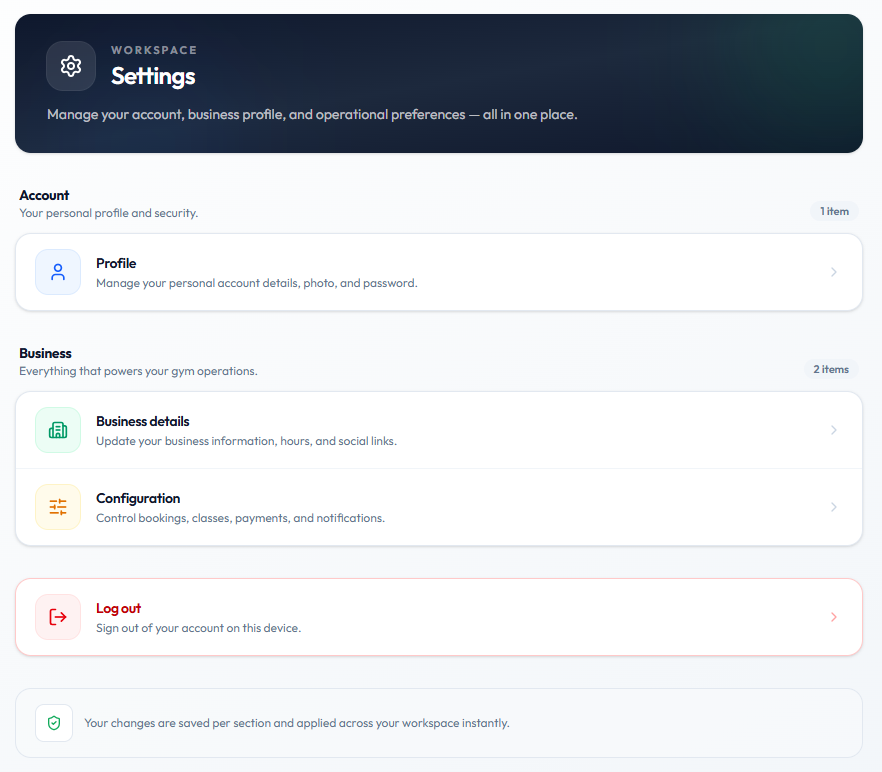
The page heading is WORKSPACE Settings. Description: Manage your account, business profile, and operational preferences — all in one place.
Profile is described as: Manage your personal account details, photo, and password.
On the same Settings page:
| Item | On-screen description |
|---|---|
| Business details | Update your business information, hours, and social links. |
| Configuration | Control bookings, classes, payments, and notifications. |
| Log out | Sign out of your account on this device. |
The footer on Settings says: Your changes are saved per section and applied across your workspace instantly.
Business details and Configuration are not User profile. See Settings and Website & Branding.
What User Profile Shows
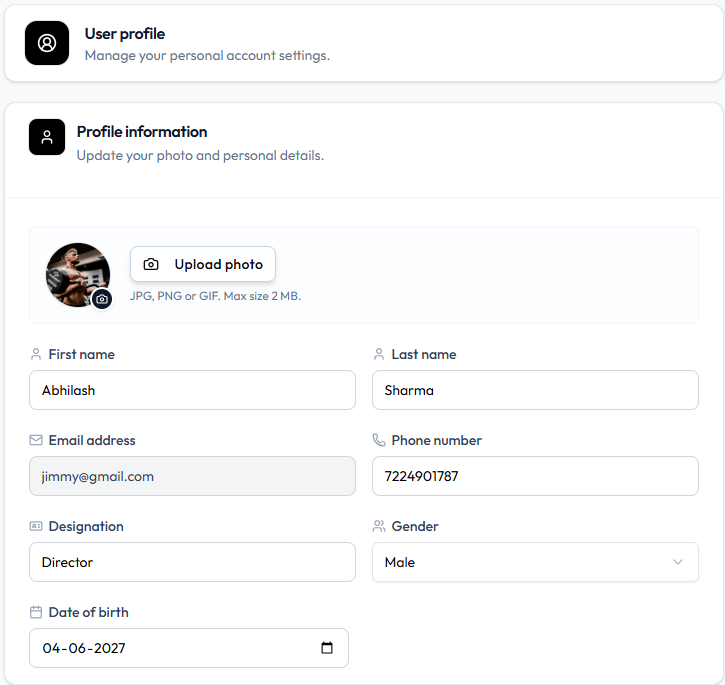
Page title: User profile. Subtitle: Manage your personal account settings.
Card title: Profile information. Subtitle: Update your photo and personal details.
| Field | Example | What it is used for |
|---|---|---|
| Photo | Circular picture, camera badge, Upload photo | Your avatar in the header and menus |
| First name | Daniel | Identifies you |
| Last name | Murphy | Identifies you |
| Email address | daniel.murphy@email.com | Login / contact. Grey background — not edited like the other fields |
| Phone number | +353 87 555 0123 | Contact |
| Designation | Front Desk | Job title |
| Gender | Male | Profile detail |
| Date of birth | Date picker | Profile detail |
Helper under the photo: JPG, PNG or GIF. Max size 2 MB.
Role is not a field on this form. It is ADMIN on the header menu. See Understanding Your Role.
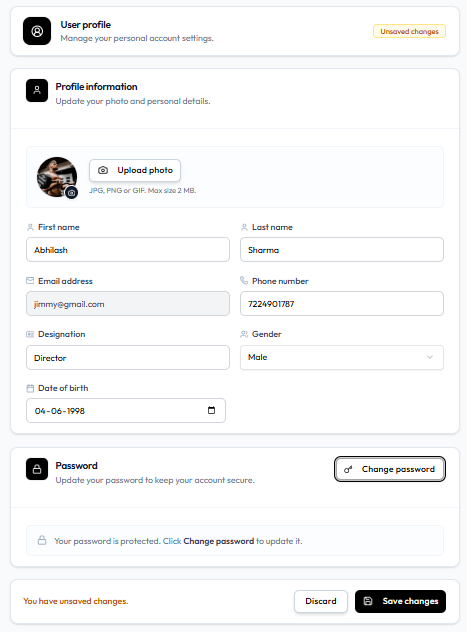
Lower on the same page (shown when the full profile is captured), the Password card starts with Change password. See Changing Your Password.
User profile does not list permission keys. See Checking What You Are Allowed to Do.
Related Articles
Updating Your Profile
On User profile, change Profile information, then click Save changes.
Open the page from the header photo → Profile, or from Settings → Account → Profile.
What You Can Change
On this screenshot the yellow badge reads Unsaved changes. The footer reads You have unsaved changes. with Discard and Save changes.
| Field | Example | Editable here |
|---|---|---|
| First name | Daniel | Yes |
| Last name | Murphy | Yes |
| Email address | daniel.murphy@email.com | No — grey background |
| Phone number | +353 87 555 0123 | Yes |
| Designation | Front Desk | Yes |
| Gender | Male | Yes (dropdown) |
| Date of birth | Date picker | Yes |
| Photo | Upload photo | Yes — see Updating Your Profile Photo |
Role is not on this form.
The Password card on the same page is separate: Change password. See Changing Your Password.
Workflow — Update Your Details
Header photo → Profile → Edit fields → Save changes
Step 1 — Open Profile
Step 2 — Change the Fields That Are Not Grey
When a change is pending, the header shows Unsaved changes and the footer shows You have unsaved changes.
Step 3 — Click Save Changes
Discard throws away the pending edits.
After a successful save, the bar shows Profile saved successfully. Discard and Save changes on that bar are inactive.

What the form shows if a value is invalid is not captured yet.
Do not use another person’s login to edit their record. Use Team Members if you manage staff.
Updating Your Profile Photo
On User profile, under Profile information, use Upload photo. Helper text: JPG, PNG or GIF. Max size 2 MB.
A camera icon sits on the circular avatar.
Workflow — Change Your Photo
Step 1 — Click Upload Photo (or the Camera on the Avatar)
The modal title is Update Profile Image. Instruction: Upload a photo, then zoom and reposition it inside the circle.
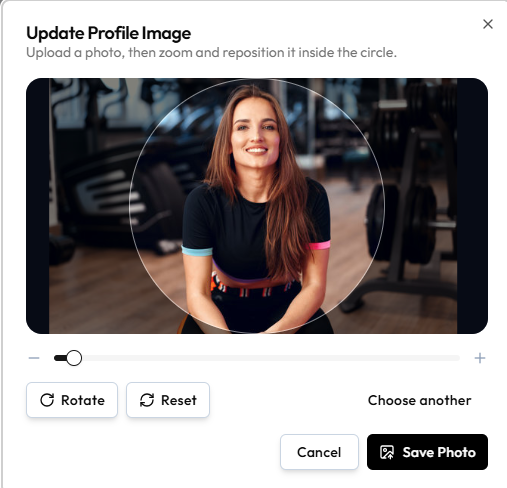
Step 2 — Adjust the Image
| Control | What it does |
|---|---|
| Circle overlay | Area that becomes your avatar |
| Zoom - / + | Zoom inside the circle |
| Rotate | Rotate the photo |
| Reset | Undo zoom and position |
| Choose another | Pick a different file |
Step 3 — Click Save Photo
Cancel or X closes without saving.
This is your staff avatar (header and profile menu). It is not the Client Initials on People → Clients. For other product images, see Media & Images.
There is no control to remove the photo and leave none. Replace it with Upload photo or Choose another.