Pricing
A pricing plan is a price on a Package. One package can have more than one plan. The package is the offer. The plan is what the member pays.
Package Versus Pricing Versus Discount
| Term | What it is |
|---|---|
| Package | The offer — name, type, validity |
| Pricing | Plans & billing options on that offer |
| Discount | A reduction you can attach to a plan. See Discounts |
Where Pricing Lives
Open Training → Packages → Edit Package → Pricing (section 2/2 — Plans & billing options).
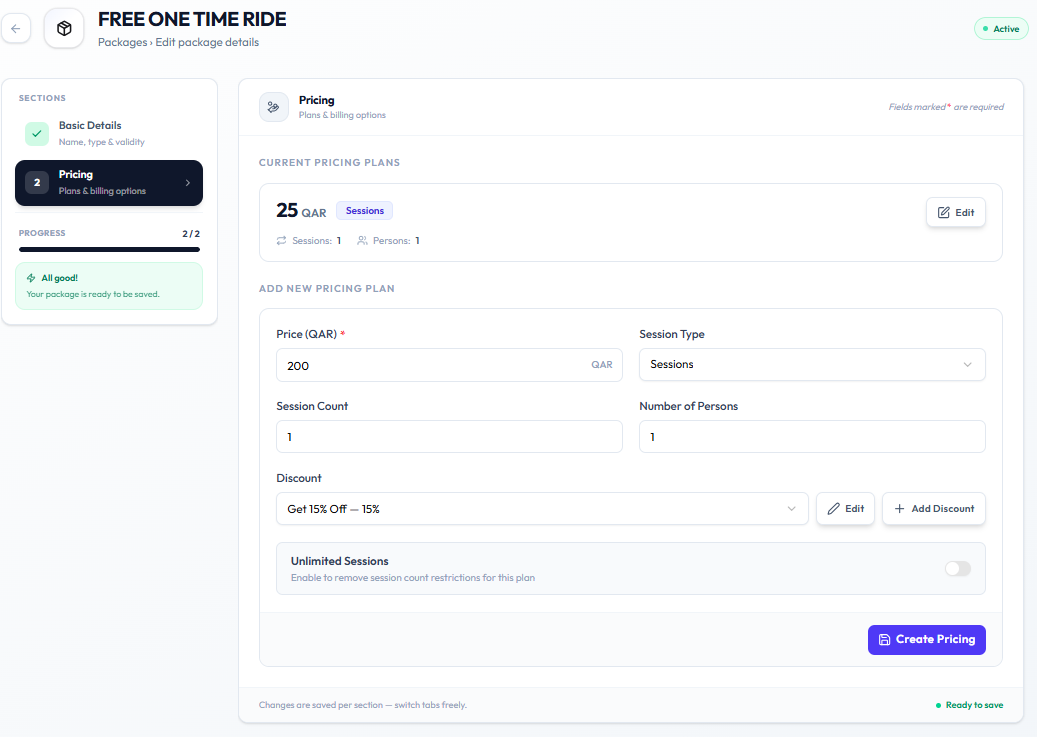
Current Pricing Plans lists plans already saved (for example 25 QAR Sessions with Sessions: 1 and Persons: 1).
What a Plan Can Include
| Field | On the form |
|---|---|
| Price (QAR) * | Amount in QAR |
| Session Type | For example Sessions |
| Session Count | Number of sessions |
| Number of Persons | People covered by the plan |
| Discount | Existing discount, or + Add Discount |
| Unlimited Sessions | Removes session count restrictions when enabled |
Click Create Pricing to add the plan. Use Edit on a current plan to change it.
On the catalogue, cards show the price and session count (for example 100 QAR, 10 Sessions).
Frequently Asked Questions
Where do I see the price?
On each package card on Training → Packages, in QAR, and under Pricing when you edit.
Is the price the same as the package?
No. The package is the offer. Pricing is the plan (or plans) attached to it.
Add a Pricing Option
Add a pricing plan when the package needs a price, or another price — for example a second session count or person count on the same offer.
Step 1 — Open Pricing
Open Training → Packages, click Edit Package, then open Pricing in the sections list.
Step 2 — Fill Add New Pricing Plan
| Field | Notes |
|---|---|
| Price (QAR) * | Required |
| Session Type | For example Sessions |
| Session Count | For example 1 |
| Number of Persons | For example 1 |
| Discount | Optional. Pick a discount or + Add Discount |
| Unlimited Sessions | Optional. Enable to remove session count restrictions for this plan. |
Step 3 — Create Pricing
Click Create Pricing. The plan appears under Current Pricing Plans.
After Saving
The package card on the catalogue should show the updated price and session count.
Edit a Pricing Option
Edit a pricing plan when the amount, sessions, persons, or discount on that plan should change.
Step 1 — Open Pricing
Open Training → Packages → Edit Package → Pricing.
Step 2 — Edit the Plan
Under Current Pricing Plans, click Edit on the plan (for example 25 QAR Sessions).
Step 3 — Save the Change
Update the fields Fitnez Studio shows for that plan, then save using the action on screen.