Writing Templates
Members should know why they received the email. Use Email Subject and Email Body on Create or Edit Template.
Insert personal details with Placeholders. The editor subtitle is: use {{variables}} that get filled in automatically when the email is sent.
Subject
- Keep it short
- Say what happened
- Use a token from DYNAMIC VARIABLES when the fact changes per member
Examples from the List
Package Purchased
Package Purchase
Wallet Top-up Success
Credit added in your wallet
{{wallet.amount}}
Booking Created
Booking Confirmed
{{booking.seat_id}}
On Create Template, a package subject can also look like:
Your
{{package.name}}package has been purchased successfully
Prefer tokens you click from the panel so the spelling matches.
Avoid a subject that only says Update.
Body
The toolbar: Bold, Italic, Underline, bulleted list, numbered list, hyperlink.
- Greet with
{{user.full_name}}(Full Name) - Say why they are getting the email
- Put package, booking, or wallet details using the tokens for that event
- End with the studio name from the Email Footer, or
{{company_name}}if you insert it
Example (Package)
Hello
{{user.full_name}},
Thank you for your purchase. Your{{package.package_name}}package is now on your account, with{{package.session_count}}sessions.
We look forward to seeing you at FITNEZ STUDIO.
Writing Guidelines
| Do | Avoid |
|---|---|
| Click tokens from DYNAMIC VARIABLES | Guessing a token name |
| Name the class, package, or amount | A subject that only says Update |
| Preview before you leave Active on | Sending unreadable {{ text if a token is mistyped |
Related Articles
Using Placeholders
A placeholder (the UI also says variables) is a token that Fitnez Studio fills when it sends the email.
Syntax on screen: double curly braces, for example {{user.full_name}}.
In the template: Hello {{user.full_name}},
When sent: the member’s full name, such as Emma Wilson.
The Create Template subtitle: Compose the email and use {{variables}} that get filled in automatically when the email is sent.
Where to Insert Them
On Create Template or Edit Template, the right-hand panel is DYNAMIC VARIABLES.
The instruction is: Click to insert into the focused field (subject or body).
Click in Email Subject or Email Body first, then click a variable.
The panel is grouped (for example User, Package). A scrollbar means more groups sit below — for example wallet and booking tokens used on the list.
Confirmed Variables
Visible on the Package Purchased form:
| Placeholder | Label on the panel | Example |
|---|---|---|
{{user.email}} | emma@example.com | |
{{user.full_name}} | Full Name | Emma Wilson |
{{package.package_id}} | Package Id | (system id) |
{{package.package_name}} | Package Name | Peak Fit |
{{package.package_pricing_id}} | Package Pricing Id | (system id) |
{{package.session_count}} | Session Count | 10 |
{{package.session_type}} | Session Type | As stored on the package |
On the Email Templates list subjects:
| Placeholder | Where it appears |
|---|---|
{{wallet.amount}} | Wallet Top-up subject |
{{booking.seat_id}} | Booking Created subject |
Create Template body text in one screenshot also uses {{name}}, {{package.name}}, {{package.purchase_date}}, {{package.amount}}, and {{company_name}}. Prefer the names on DYNAMIC VARIABLES so they match the panel. Scroll the panel for the full set for that event.
Workflow — Personalise an Email
- Open Create or Edit Template.
- Click in the subject or body.
- Click a token under DYNAMIC VARIABLES.
- Preview.
Which tokens appear depends on Event Type (package vs booking vs wallet).
Previewing an Email
Use Preview (eye) on Create Template, Edit Template, or a list row so you can check layout before members receive the mail.
The preview title looks like Preview · Package Purchased. The subtitle is: Package Purchased — rendered with sample data.
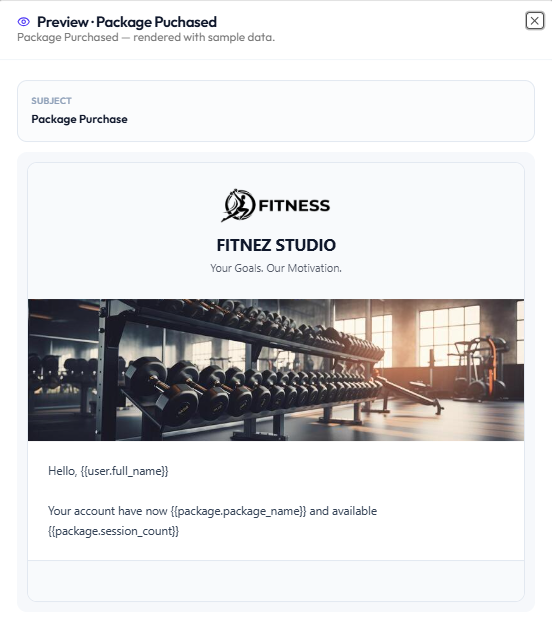
What You See
| Area | What it shows |
|---|---|
| SUBJECT | The subject line, such as Package Purchase |
| Header | Global Header: logo, FITNEZ STUDIO, tagline, banner |
| Body | Your Email Body |
| Footer | Space for the Global Footer |
In this screenshot the body still shows {{user.full_name}}, {{package.package_name}}, and {{package.session_count}}. Check that every token is one you inserted from DYNAMIC VARIABLES.
Preview does not send mail to Emma Wilson. There is no send-test button on this modal.
Workflow — Preview an Email
Email Template → Preview → Review → X or back to editor → Save
Step 1 — Open Preview
From the list, click the eye. From Create or Edit, click Preview.
Step 2 — Check
- Subject
- Header logo, name, tagline, banner
- Body wording and tokens
- Footer when it is configured
Step 3 — Close and Fix
Close with X. Edit if needed, then Save Changes or Create Template.
Email Header & Footer
On Email Templates, Create Header & Footer (or Edit Header & Footer after it exists) opens global branding.
The subtitle is: One global header & footer is applied to every email template, preview, and sent email.
This is separate from the Public Website logo. Changing website branding does not automatically change this email header unless you update it here. See Website Logos & Section Images and Media & Images.
Header
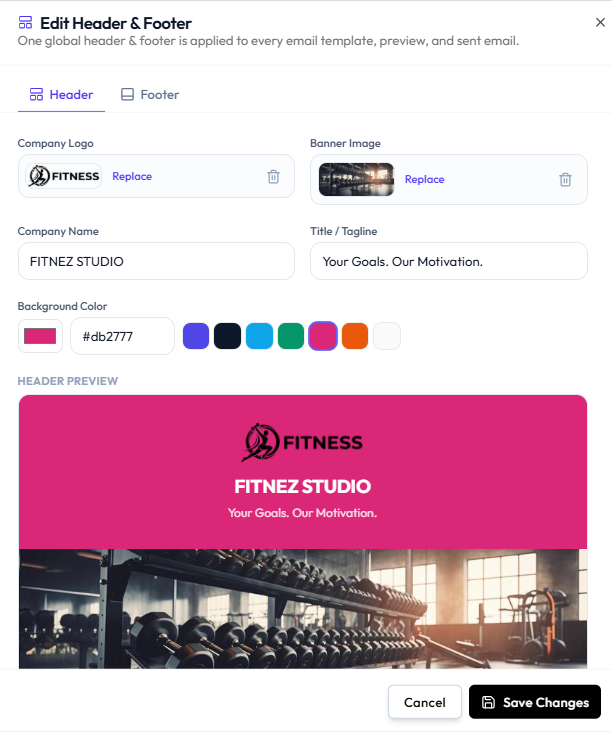
The Header tab includes:
| Field | What it is |
|---|---|
| Company Logo | Upload, Replace, or remove |
| Banner Image | Upload, Replace, or remove |
| Company Name | For example FITNEZ STUDIO |
| Title / Tagline | For example Your Goals. Our Motivation. |
| Background Color | Hex value (such as #db2777) and colour presets |
HEADER PREVIEW shows logo, name, tagline, background colour, and banner.
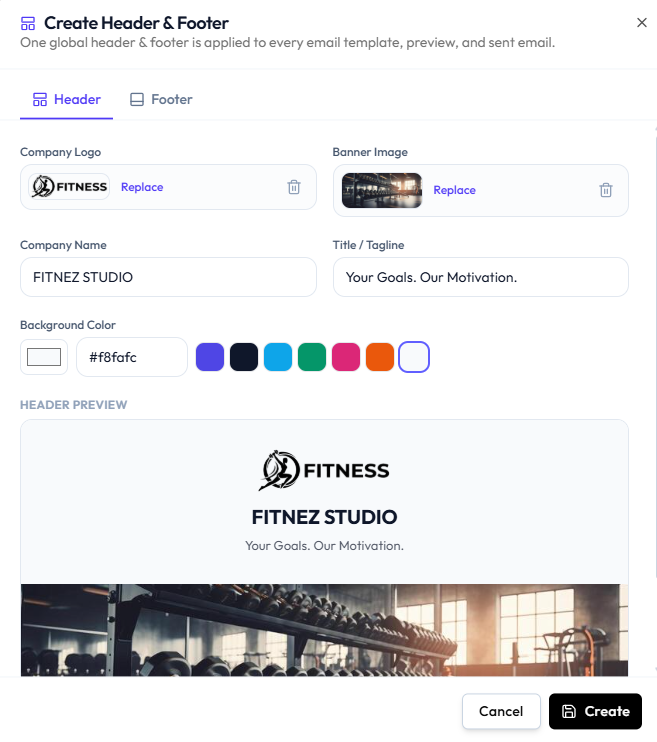
If you have not created branding yet, the modal title is Create Header & Footer and the button is Create.
Footer
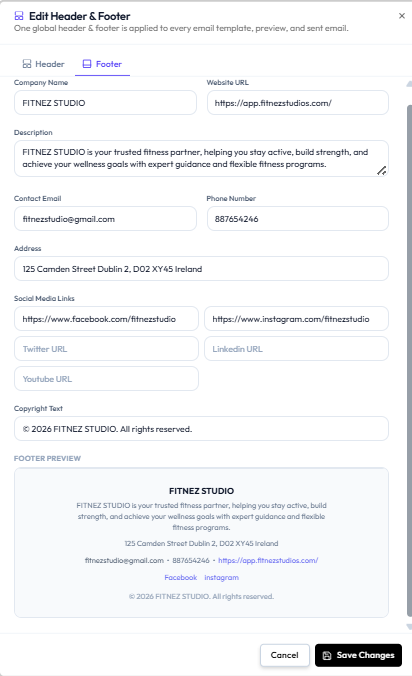
The Footer tab includes:
| Field | Example on screen |
|---|---|
| Company Name | FITNEZ STUDIO |
| Website URL | Studio website URL |
| Description | About the studio |
| Contact Email | Studio contact email |
| Phone Number | Studio phone |
| Address | For example Dublin |
| Profile URL, or empty | |
| Profile URL, or empty | |
| Twitter URL | Optional |
| LinkedIn URL | Optional |
| Youtube URL | Optional |
| Copyright Text | For example © 2026 FITNEZ STUDIO. All rights reserved. |
FOOTER PREVIEW shows name, description, address, email, phone, website, social links that have URLs, and copyright.
Do not assume this contact email is the from address of the message. It appears in the footer content.
Workflow — Set Header and Footer
Step 1 — Open Email Templates
Studio → Notification → Email Notification.
Step 2 — Open Create or Edit Header & Footer
Step 3 — Fill Header, Then Footer
Use Replace to change logo or banner. Empty social URL fields are omitted from the preview in this screenshot (only Facebook and Instagram show as links).
Step 4 — Save
Save Changes (edit) or Create (first time). Cancel or X closes without saving.
You see the header (and footer when filled) on Preview.
Which Events Can Trigger an Email
This page answers: What emails can Fitnez Studio automatically send to my members?
On All Templates, open All events. That list is the complete set of Event Type values in the current screenshot.
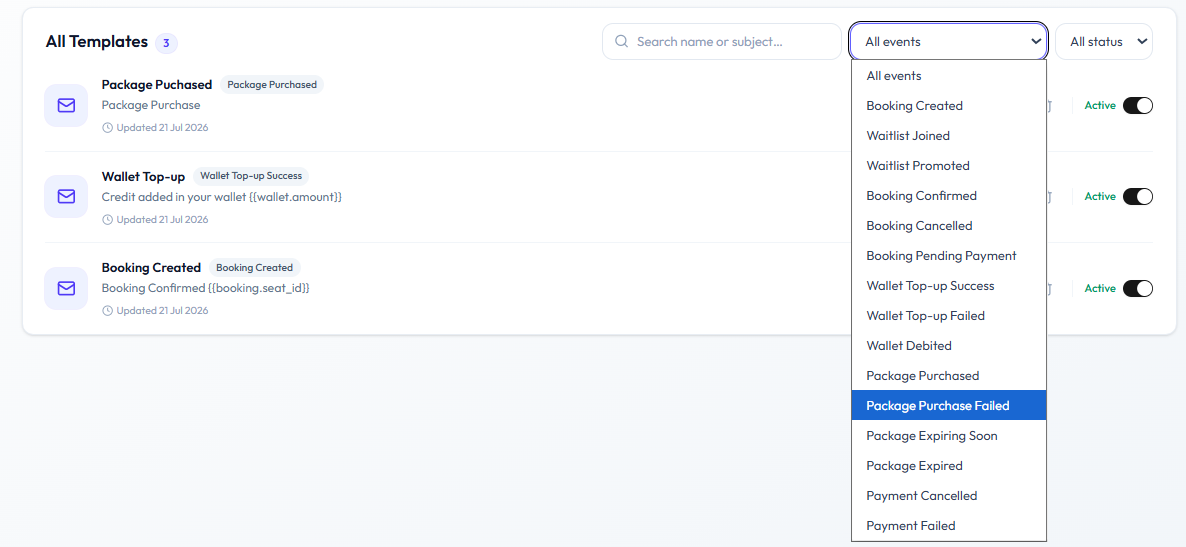
Daniel Murphy creates a Template and picks one Event Type. When that event happens, Fitnez Studio can send the template if it is Active.
Workflow — See All Email Notification Events
Studio → Notification → Email Notification → All events
Events on the List
| Event | When it happens (from the name) | Who typically receives it | Related guide |
|---|---|---|---|
| Booking Created | A Booking is created | Member | Book a Member |
| Waitlist Joined | The member joins a Waitlist | Member | Waiting-List Update Emails |
| Waitlist Promoted | The member is promoted from the waitlist | Member | Move Into the Class |
| Booking Confirmed | The booking is confirmed | Member | Bookings |
| Booking Cancelled | The booking is cancelled | Member | Cancel a Booking |
| Booking Pending Payment | The booking is waiting for payment | Member | Sales & Payments |
| Wallet Top-up Success | Wallet credit succeeded | Member | Adding Money to a Wallet |
| Wallet Top-up Failed | Wallet top-up failed | Member | Refunds & Failed Payments |
| Wallet Debited | Wallet money was deducted | Member | Deducting Money from a Wallet |
| Package Purchased | A Package was purchased | Member | Packages |
| Package Purchase Failed | Package purchase failed | Member | Refunds & Failed Payments |
| Package Expiring Soon | A held package is nearing expiry | Member | Packages on a Member |
| Package Expired | A held package has expired | Member | Packages on a Member |
| Payment Cancelled | A payment was cancelled | Member | Sales |
| Payment Failed | A payment failed | Member | Refunds & Failed Payments |
Exact send time (for example how soon before Package Expiring Soon) is not on this screen.
Templates already on the list:
| Template name | Event tag | Subject on the list |
|---|---|---|
| Package Purchased | Package Purchased | Package Purchase |
| Wallet Top-up | Wallet Top-up Success | Credit added in your wallet {{wallet.amount}} |
| Booking Created | Booking Created | Booking Confirmed {{booking.seat_id}} |
If there is no Active template for an event, that event should not send automatically. See Turning Notifications on & Off.
Welcome email, class reminder, and birthday are not in this All events list. See those pages for what that means.