Schedules
A schedule is a repeating timetable that creates many classes. Use it when the same session should run every week — for example Cycling every Monday at 6:00 PM — instead of adding each date by hand.
What Is a Schedule?
A class is one session. A schedule is the pattern that generates those sessions.
| Term | Meaning |
|---|---|
| Class | One date and time, listed on Class Management |
| Schedule | The repeating rule that creates many of those classes |
The key message: a schedule creates multiple class sessions.
Why Schedules Save Time
- You set days and times once
- Fitnez Studio can add the classes for you
- You Pause for a holiday instead of deleting every row
Where to Find Schedules
Open Training → Classes, then Scheduled Classes.
The page stays Class Management. The count next to the title shows schedules, such as 1 schedules. The list heading is Scheduled Classes. The subtitle is: Publish schedules and their drop dates.
See View All Schedules for the columns and screenshot.
Draft classes also have Add to scheduler on the row menu. See Add Classes to a Schedule.
Create a Repeating Schedule
Create a schedule when the same class should repeat — for example Reformer Pilates every Tuesday and Thursday at 7:00 AM in Toronto.
The confirmed entry points are Scheduled Classes on Class Management, and Add to scheduler on a Draft class. See Add Classes to a Schedule.
Before You Start
- Confirm the Location.
- Know the program, days, times, and Trainer.
- Check Timetable Conflicts if the trainer already has sessions.
Step 1 — Open Schedules
Open Training → Classes, then Scheduled Classes.
You can also start from a draft class: open ⋯ and choose Add to scheduler.
Step 2 — Set the Repeating Pattern
The topic plan describes a weekly timetable that repeats automatically. Fields to look for:
- Frequency
- Days
- Time
- Trainer
- Location
- Start date
- End date, if shown
There is no screenshot of the schedule builder form. This guide does not name the create button or confirm which of those fields exist.
Step 3 — Save
Save so Fitnez Studio can generate the classes.
After Saving
The timetable appears on Scheduled Classes with DROPS ON, PUBLISHING IN, CLASSES, and status Scheduled. See View All Schedules.
Add Classes to a Schedule
Add classes to an existing schedule when you need extra sessions on a timetable that is already running — for example a one-off Saturday Cycling class on top of the weekday pattern.
On a Draft class, the row menu includes Add to scheduler.
That action is not on an Upcoming class menu.
Step 1 — Find a Draft Class
Open Training → Classes, then Draft Classes.
Step 2 — Choose Add to Scheduler
Open ⋯ and click Add to scheduler.
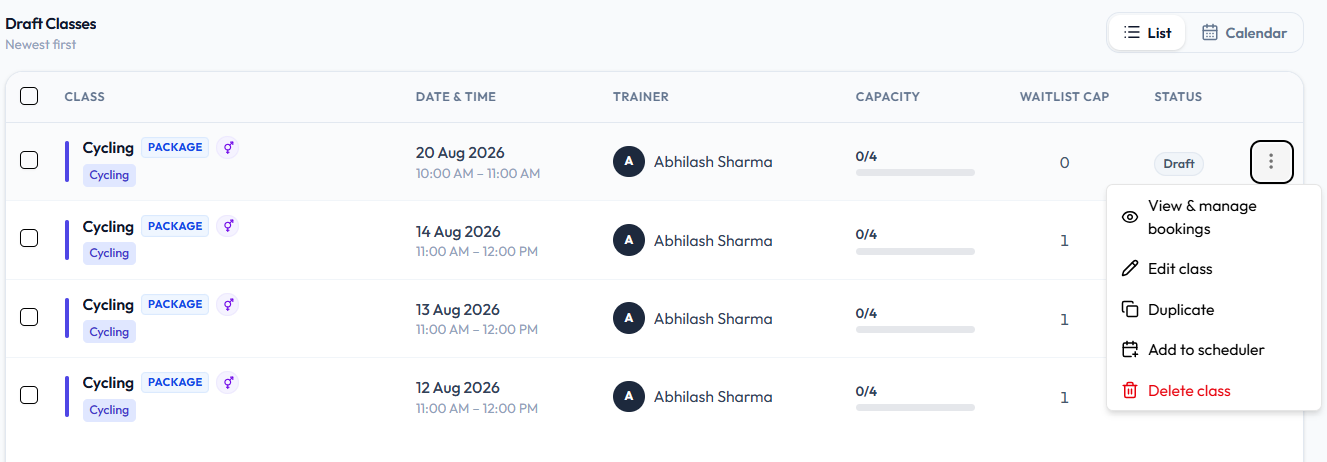
You can also open the timetable from Scheduled Classes.
Step 3 — Save
Complete the scheduler screen Fitnez Studio opens so the class is counted under CLASSES on that schedule.
There is no screenshot of the scheduler after Add to scheduler. This guide does not describe whether extra classes stay linked to the schedule or which dates you can add.
You can also Create a Single Class if the extra session should not belong to the timetable.
View All Schedules
Use Scheduled Classes to review repeating timetables — drop date, countdown, class count, and status — before you pause or add sessions.
Where to Look
Open Training → Classes, then Scheduled Classes.
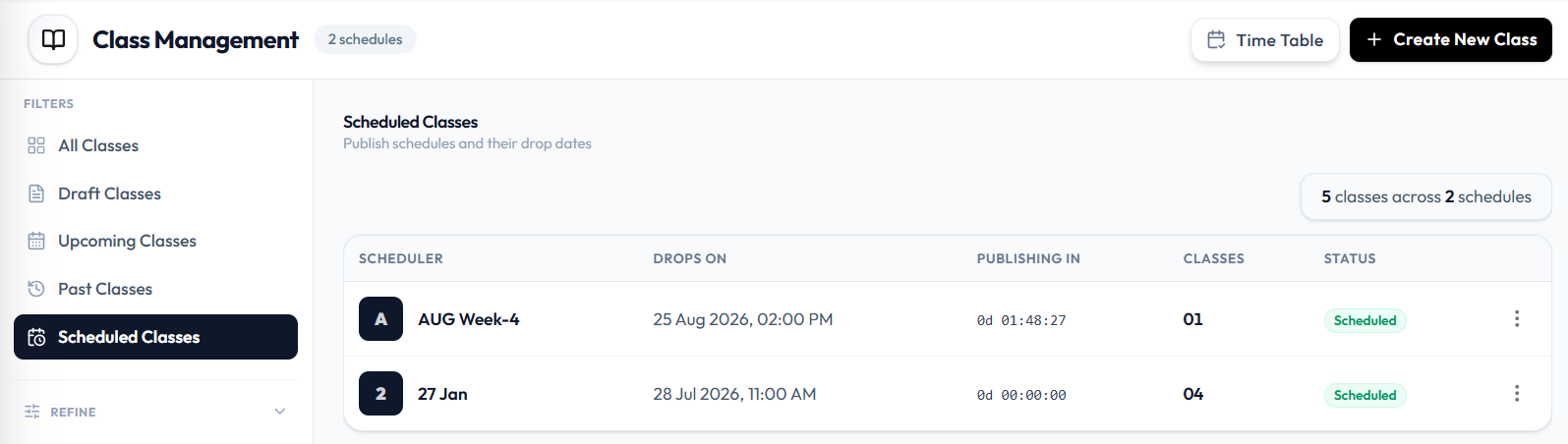
The heading is Scheduled Classes. The subtitle is: Publish schedules and their drop dates. A summary badge can show 4 classes across 1 schedule.
What You See
| Column | What it is |
|---|---|
| SCHEDULER | The timetable identifier, such as 2 and 27 Jan |
| DROPS ON | When the classes become available, such as 28 Jul 2026, 11:00 AM |
| PUBLISHING IN | A countdown, such as 0d 00:00:00. A paused schedule shows — |
| CLASSES | How many classes are in the schedule, such as 04 |
| STATUS | Scheduled or Paused |
| ⋯ | Actions for that schedule |
REFINE on this filter is the same as the class list: Trainer, Program, and Location.
The schedule row menu (⋯) is not open in this screenshot. This page does not list the menu labels.
Pause & Resume a Schedule
Pause a schedule when classes should stop generating for a period — for example a studio holiday in Melbourne — without deleting the timetable. Resume it when sessions should start again.
A paused timetable shows status Paused on Scheduled Classes. PUBLISHING IN shows —.
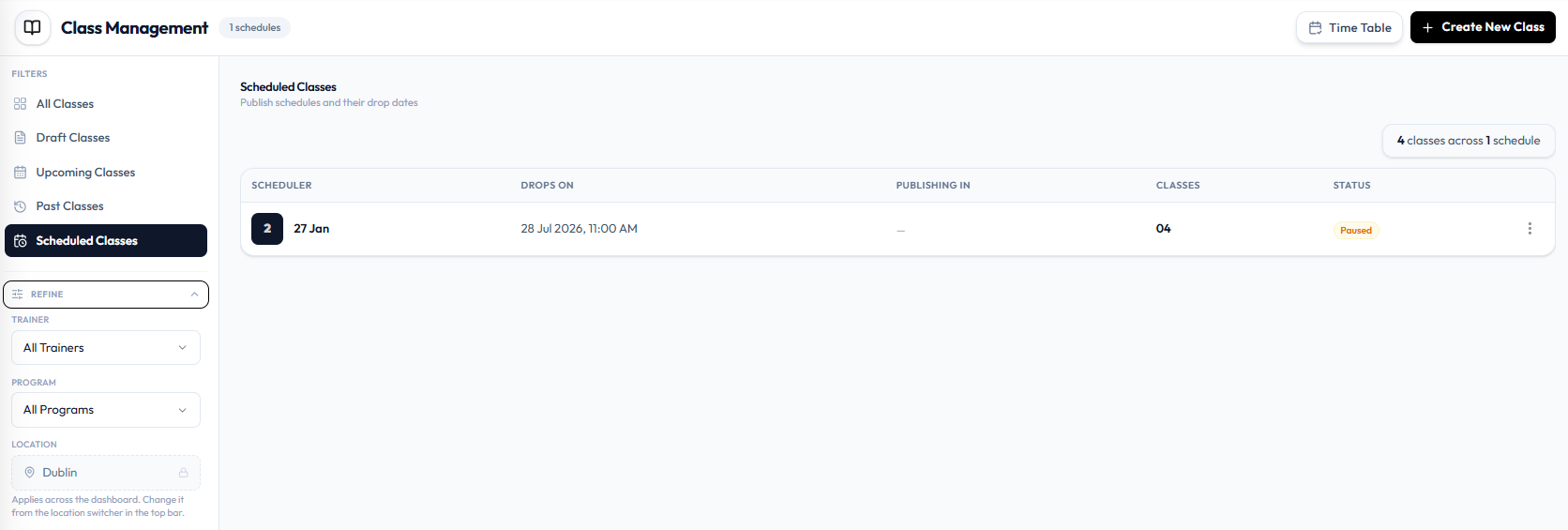
Pause
Step 1 — Open Scheduled Classes
Open Training → Classes, then Scheduled Classes.
Step 2 — Pause
Open ⋯ on the schedule row and use the pause action Fitnez Studio shows.
When the schedule is paused, STATUS is Paused and PUBLISHING IN is —.
Resume
Step 1 — Open the Paused Schedule
Stay on Scheduled Classes. Find the row with Paused.
Step 2 — Resume
Open ⋯ and use the resume action Fitnez Studio shows.
A running timetable shows Scheduled and a countdown under PUBLISHING IN. See View All Schedules.
Pause and Resume are not labelled on the open row menu in this screenshot. This guide does not say whether already-created classes stay on Class Management, whether members keep bookings, or whether new dates are skipped while paused.
Timetable Conflicts
Check for clashes before you publish. Fitnez Studio blocks create or publish when the trainer is already booked in that slot.
Trainer Conflicts
If the same Trainer already has a class in the time you entered, a message appears:
Trainer already has a class scheduled in this time slot.
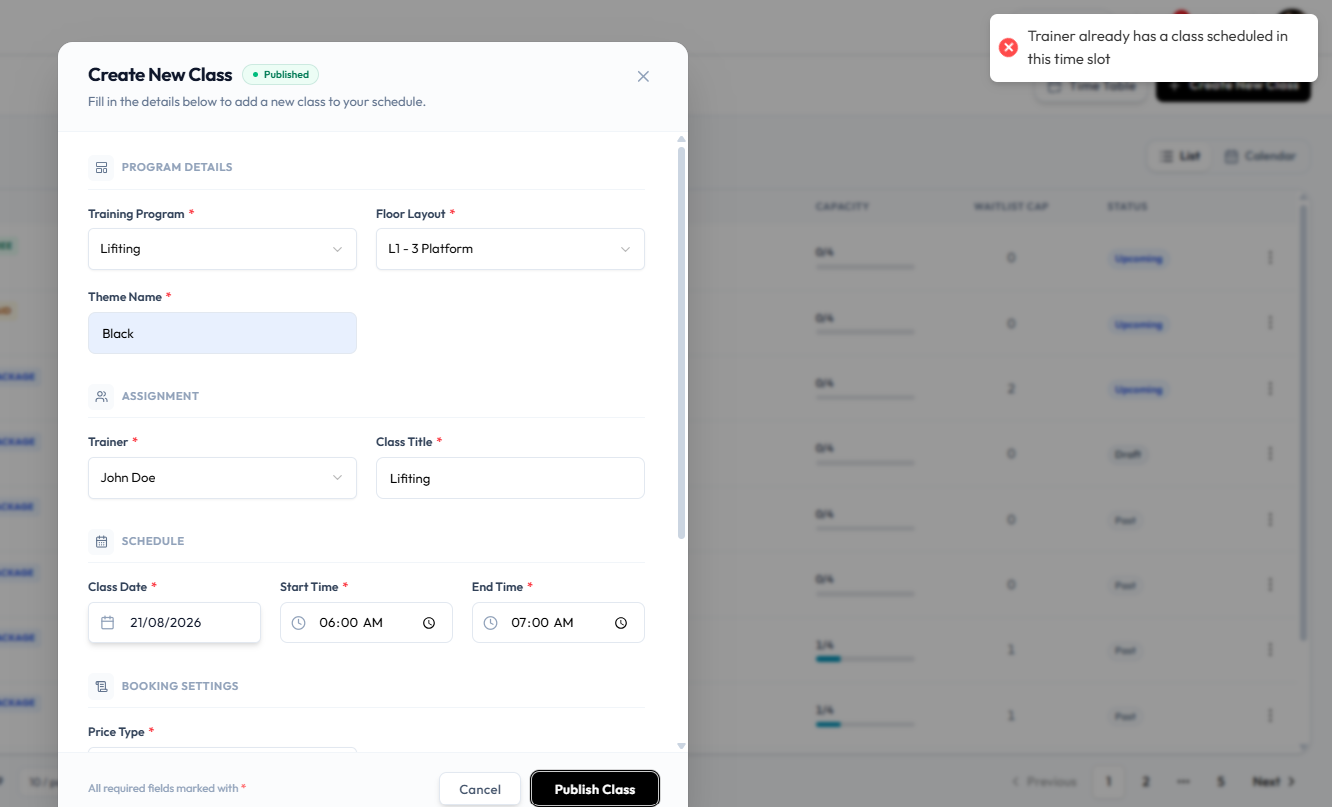
Choose a different Class Date, Start Time, End Time, or Trainer, then try Publish Class again.
You can also compare TRAINER and DATE & TIME on Class Management, or open Time Table.
Room Conflicts
A room conflict would mean two classes need the same space at the same time. The current error is about the trainer, not a room. Floor Layout is on the class form. Whether two classes can share the same layout at the same time is not shown in this screenshot.
This guide does not describe an override. The message is an error, not a warning you can ignore.
Frequently Asked Questions
Should I create a class or a schedule?
Create a Class for a one-off session. Create a schedule when the same slot should repeat.
Do schedule classes appear on Class Management?
Yes. A schedule row can show how many classes it holds, such as 4 classes across 1 schedule. Those classes also appear as individual rows under All Classes.