Bookings
A booking is a client’s reservation for one Class. Front desk uses Training → Booking to put someone on a session, see today’s classes, check attendance, and review every reservation on All Bookings.
What Is a Booking?
A booking ties one client to one class. It is not the class itself, and it is not a package. The package (if used) is how the client pays for that session. See Bookings & Package Credits.
Where to Find Bookings
Open Training → Booking. The page has three tabs:
| Tab | What it is for |
|---|---|
| Booking Dashboard | Live overview for the day — totals, today’s classes, staff |
| Today’s Schedule | Today’s classes, attendees, book a client, mark attendance, cancel |
| All Bookings | Full bookings list with status, filters, and Cancel booking |
Booking Dashboard
Booking Dashboard shows a Live badge and the current date/time. Use Refresh to reload.
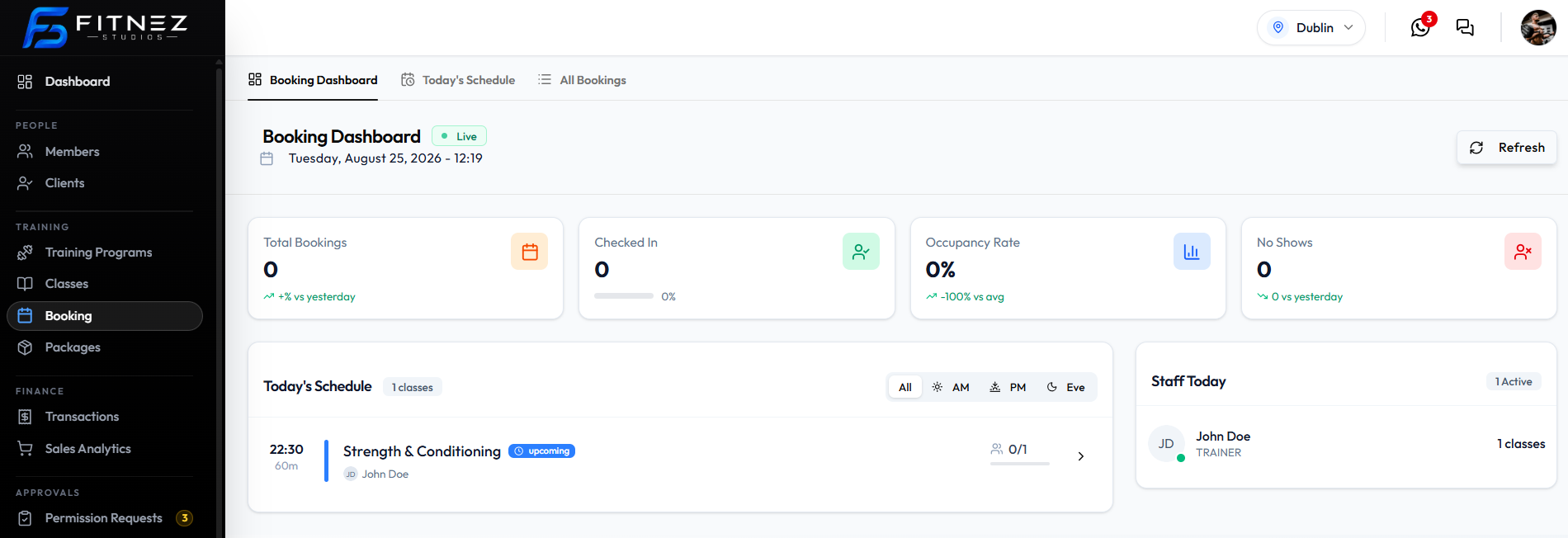
Summary cards on the capture:
- Total Bookings
- Checked In
- Occupancy Rate
- No Shows
Below that:
- Today’s Schedule — classes for the day with filters All, AM, PM, Eve, plus capacity such as 0/1
- Staff Today — active trainers and class counts
Today’s Schedule
Use Today’s Schedule to work one class at a time. Search classes, filter by TRAINER and PROGRAM, then select a class card.
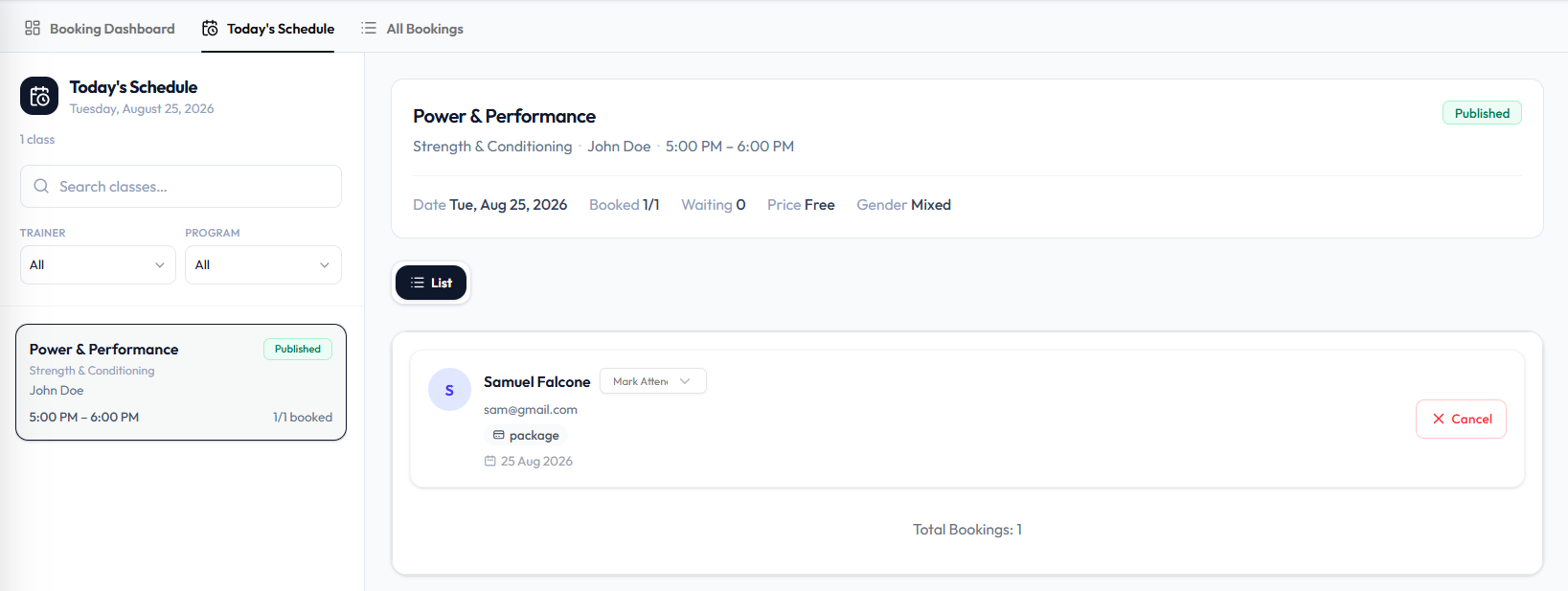
The class panel can show Published, date, Booked, Waiting, Price, and Gender. The attendee list shows each client, Mark Attendance, payment (package), and Cancel.
This is where staff Book a Client Into the Class.
All Bookings
The full list header can show Bookings (7 confirmed) and Total: 48 bookings.
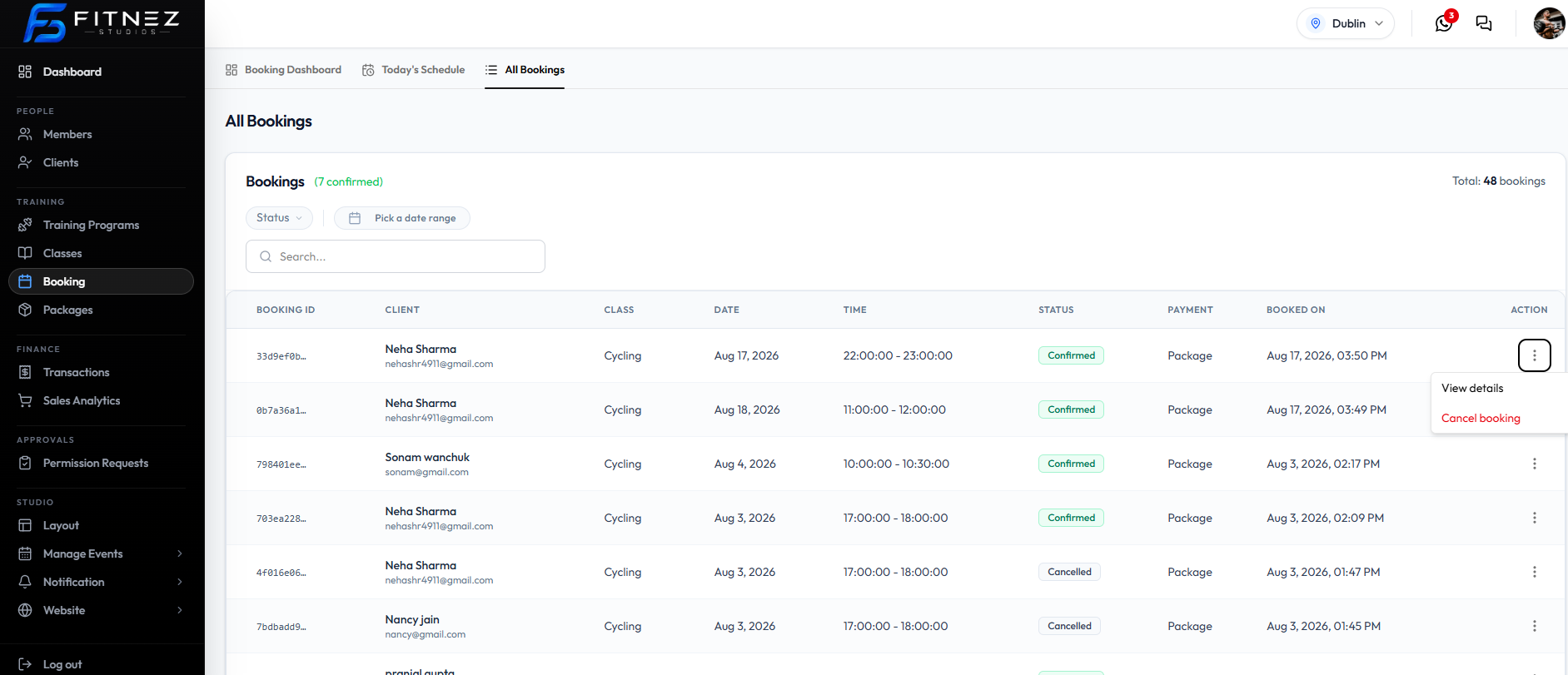
Filters: Status, Pick a date range, Search…
| Column | What it shows |
|---|---|
| BOOKING ID | Truncated id |
| CLIENT | Name and email |
| CLASS | Class name |
| DATE / TIME | Session date and time |
| STATUS | Confirmed or Cancelled |
| PAYMENT | For example Package |
| BOOKED ON | When the booking was made |
| ACTION | ⋯ → View details, Cancel booking |
What You Can Do
- Book a Client Into a Class from Today’s Schedule
- View Bookings on all three tabs
- Open the Class Roster
- Cancel from All Bookings or Cancel on Today’s Schedule
- Work with the Waiting List
- Check Members In with Mark Attendance
Booking Statuses
| Status | Where |
|---|---|
| Confirmed | All Bookings (green) |
| Cancelled | All Bookings (red) |
Pending and Waiting as booking statuses are not on All Bookings. Waiting on Today’s Schedule is a class waitlist count, not a booking status pill.
How It Works
- A Class exists for the day (often Published).
- Staff open Today’s Schedule, select the class, and Book a Client — choose client, choose or buy a package, Confirm Booking.
- If the class is full, use the Waiting List when waitlist cap allows it.
- At the session, use Mark Attendance / Check-In.
Important Information
- Class capacity still appears on Training → Classes as CAPACITY (for example 0/4). See Class Capacity & Waitlist.
- Booking from Today’s Schedule requires a user package when Step 2 asks for one — or + Buy New Package first.
- Rules such as advance booking and cancellation windows are on Booking Rules.
Frequently Asked Questions
Where is Booking in the menu?
Training → Booking. Classes stay under Training → Classes.
How do I book someone for today?
Open Today’s Schedule, select the class, then follow Book a Member.