Website & Branding
Website is where you design and manage the public site for your studio subdomain. Open it from Studio → Website.
The page title is Website. The subtitle is Design and manage the public website for your subdomain.
Under Website in the sidebar you get three areas:
| Menu | What it is for |
|---|---|
| Theme | Theme gallery, search, and featured filter |
| Details | Branding, contact, legal policies, tax & invoice |
| Sections | Page sections, reorder, edit content, and SEO |
On the captured screens the site status is Published (green). Unsaved changes (orange) appears when you edit Details or Sections and have not saved yet.
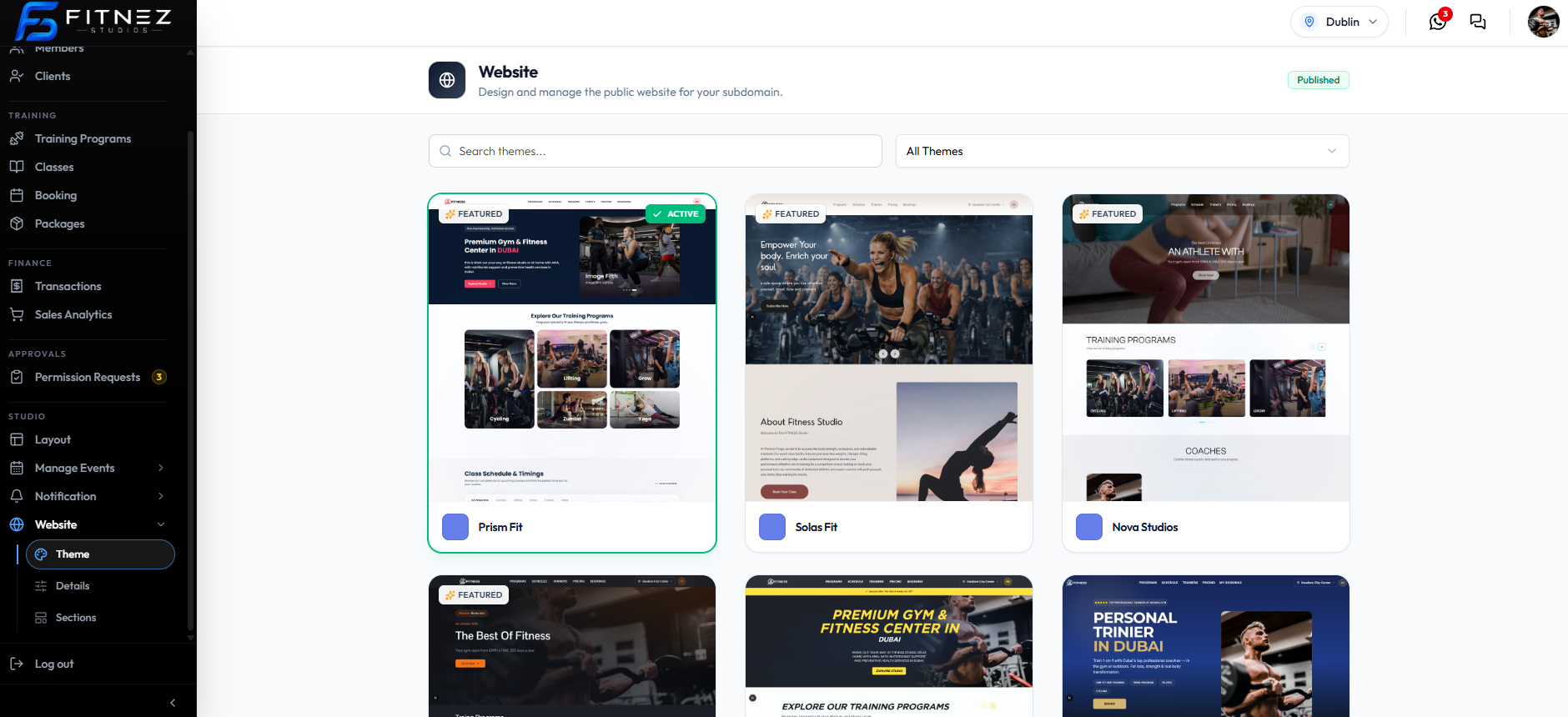
Theme Gallery
On Theme, search with Search themes…. Filter with:
- All Themes
- Featured Only
- Not Featured
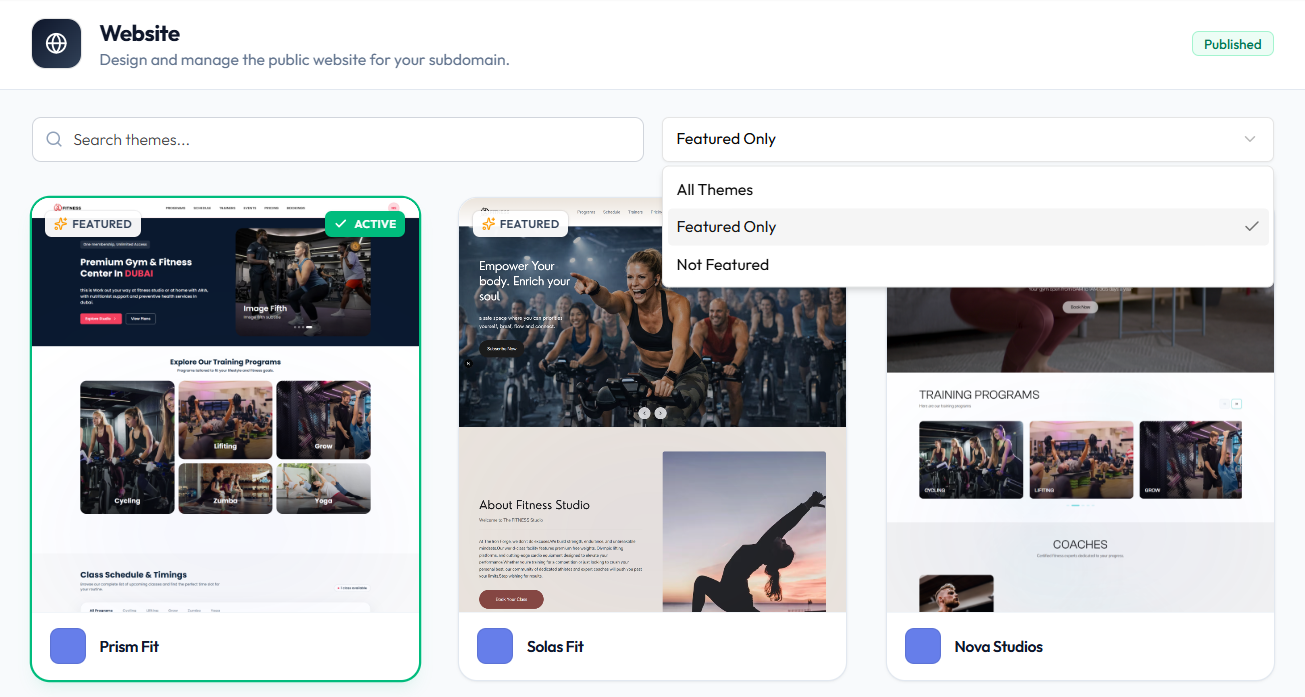
Each card shows a preview, a colour swatch, and the theme name. Labels include ACTIVE and FEATURED.
| Theme | Labels on the capture |
|---|---|
| Prism Fit | ACTIVE, FEATURED |
| Solas Fit | FEATURED |
| Nova Studios | (preview card) |
ACTIVE is the theme in use (for example Prism Fit). Sections also show THEME: Prism Fit.
Details
Details has four panels on the left:
- Branding — logos, about text, colour presets, primary / secondary / background
- Contact information — support email, support phone, social links
- Legal & Billing — policies (Terms & conditions editor)
- Tax & invoice — Tax ID, Tax ID type, invoice prefix, invoice footer note
Use Reset and Save changes on Branding when those buttons appear.
Sections
Sections lists blocks for the public page (for example Hero Section, Training Program Section, Calendar Section). You can show or hide a section, reorder with drag handles, edit content, and open the SEO tab for meta title, description, and keywords.
Use Export JSON and Save sections when you finish editing.
What You Can Do
- Check Whether the Site Is Published
- Set Up the Website for the First Time
- Choose a Theme
- Upload Logos and Favicon
- Set Colours
- Edit About and Branding Text
- Add Support Contact
- Add Social Links
- Edit Policies
- Set Tax and Invoice Defaults
- Manage Sections and SEO
- Reorder and Edit a Section