Creating a Challenge
Create a Challenge Event when members should work toward a goal, not only attend a scheduled activity.
On Create Event, the card label is Challenge Event. The description is: A goal-based challenge with targets and rewards.
The page subtitle becomes: Configure a challenge with targets and rewards.
A Normal Event is A standard scheduled event. See Creating a Standard Event.
Condition → Target → Time Period → Reward
Members do an activity, under a condition, toward a target, inside a date window, then receive a reward.
Example you can set up like 30-Day Fitness Streak:
Complete at least 20 eligible workout sessions within 30 days and earn exclusive rewards.
On the Challenge step that becomes Target Bookings 20, with Live Preview Book any 20 sessions.
Event Type Versus Challenge Type and Booking Mode
These are not the same thing.
| Label | What it is |
|---|---|
| Event Type | Normal Event or Challenge Event. Caption: The form adapts to your choice. |
| Challenge Type | Booking Challenge or Package Challenge |
| Booking Mode | Shown when Booking Challenge is selected. How bookings are counted |
Booking Mode is not called Challenge Mode on the screen. See Challenge Conditions & Targets.
Workflow — Create a Challenge
Create Event → Challenge Event → Basics → Challenge → Rewards → Review
The stepper has four steps: Basics, Challenge, Rewards, Review.
Step 1 — Open Create Event
Open Studio → Manage Events → Event, then + Create Event.
Step 2 — Choose Challenge Event
Select Challenge Event. A Draft badge can appear next to the title when Status is Draft.
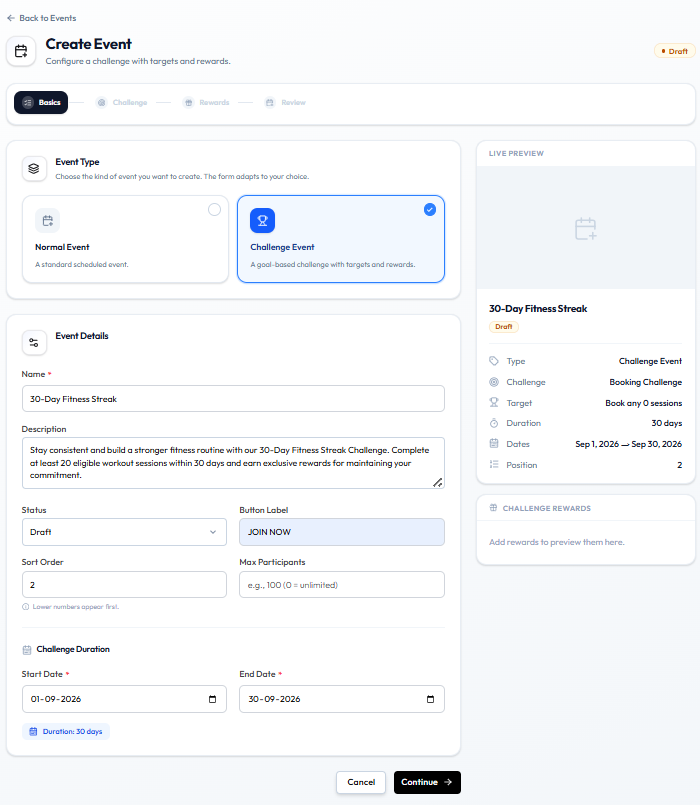
Step 3 — Fill Basics
| Field | What it is |
|---|---|
| Name | The title, such as 30-Day Fitness Streak |
| Description | What members should do |
| Status | Draft, Active, Inactive, or Completed. See Event Statuses |
| Button Label | Call-to-action text, such as JOIN NOW |
| Sort Order | A number. Help text: Lower numbers appear first. |
| Max Participants | Optional. Can be left empty |
Challenge Duration
| Field | What it is |
|---|---|
| Start Date | For example 01-09-2026 |
| End Date | For example 30-09-2026 |
A duration badge appears, such as Duration: 30 days.
LIVE PREVIEW shows Type Challenge Event, Challenge (for example Booking Challenge), Target, Duration, Dates, and Position. Challenge Rewards says Add rewards to preview them here until you attach rewards.
Step 4 — Set Challenge Type and Target
Click Continue to the Challenge step. See Booking-Based Challenges or Package-Based Challenges.
Step 5 — Add Rewards
The Rewards step uses rewards from Studio → Manage Events → Reward. If none exist yet, see Attaching Rewards to an Event.
Create rewards first if the catalog is empty. Add a Banner on Basics or Edit.
Step 6 — Review and Save
Click Continue to Review. Keep Status as Draft until the rules and rewards are ready, then switch to Active.
After Saving
The challenge should appear on the Events list. The captured list row is still a Standard event (HIIT Blast). How a challenge is labelled in the EVENT column is not shown.