View Bookings
Use this when you need to see who is booked — for today, for one class, or across all reservations.
Where to Look
| Place | What it is for |
|---|---|
| Training → Booking → Booking Dashboard | Day totals, today’s classes, staff on duty |
| Training → Booking → Today’s Schedule | One class’s attendees, waiting count, book and cancel |
| Training → Booking → All Bookings | Full list with Status, Pick a date range, and Search… |
| Training → Classes | CAPACITY on each class |
| Clients → profile | Booking History when that panel exists |
Booking Dashboard
Open Booking Dashboard for the live day view (Live badge, date/time, Refresh).
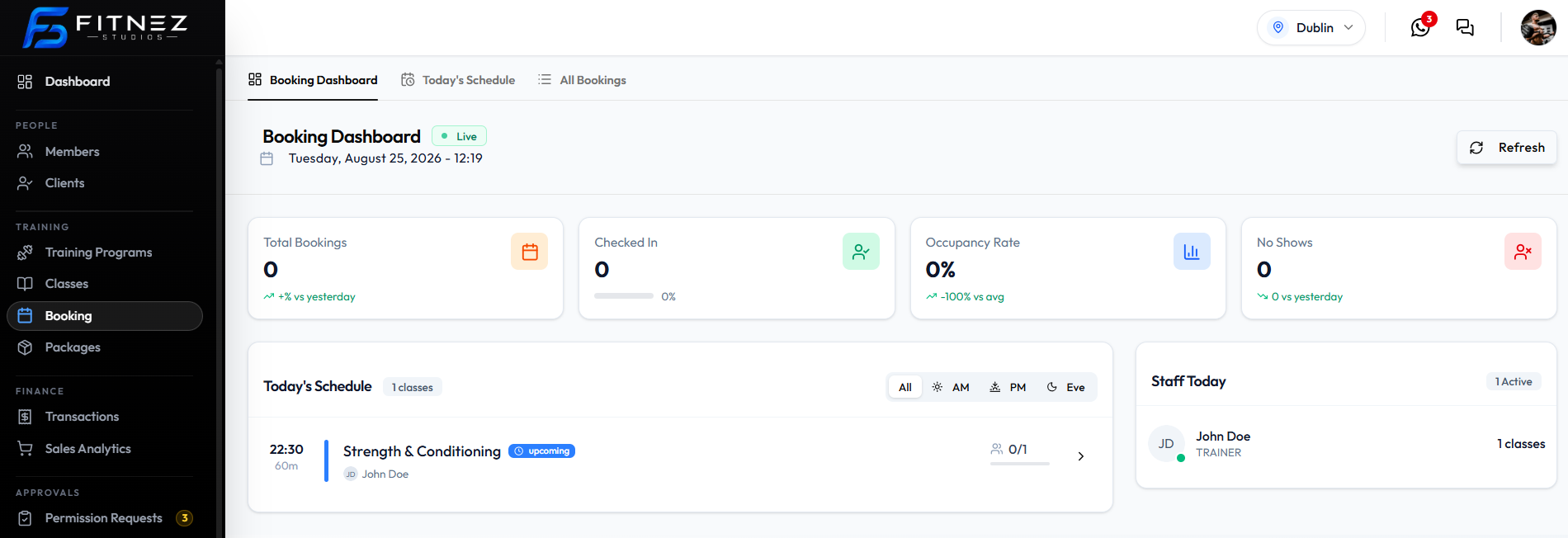
Cards include Total Bookings, Checked In, Occupancy Rate, and No Shows. Today’s Schedule on this tab lists classes with All / AM / PM / Eve filters.
Today’s Schedule
Open Today’s Schedule, search or filter by TRAINER / PROGRAM, then select a class.
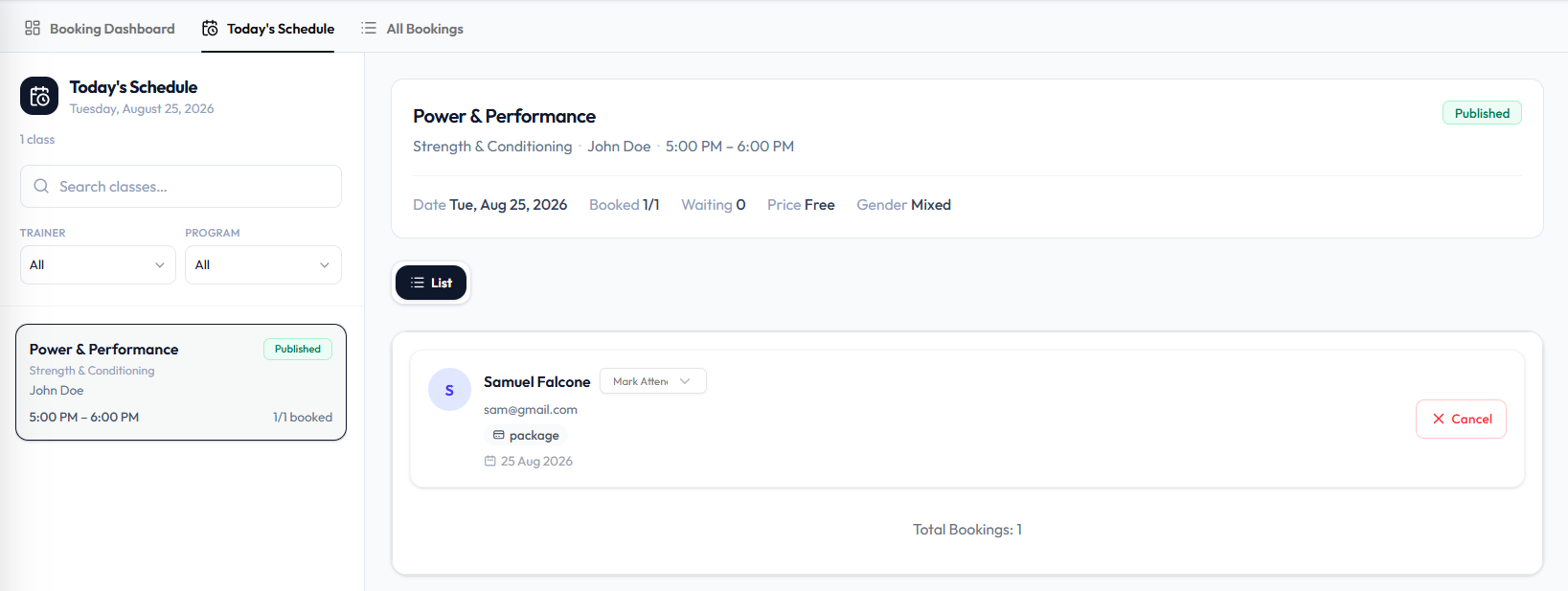
You see Booked, Waiting, price, gender, each attendee, Mark Attendance, and Cancel. Footer: Total Bookings.
All Bookings
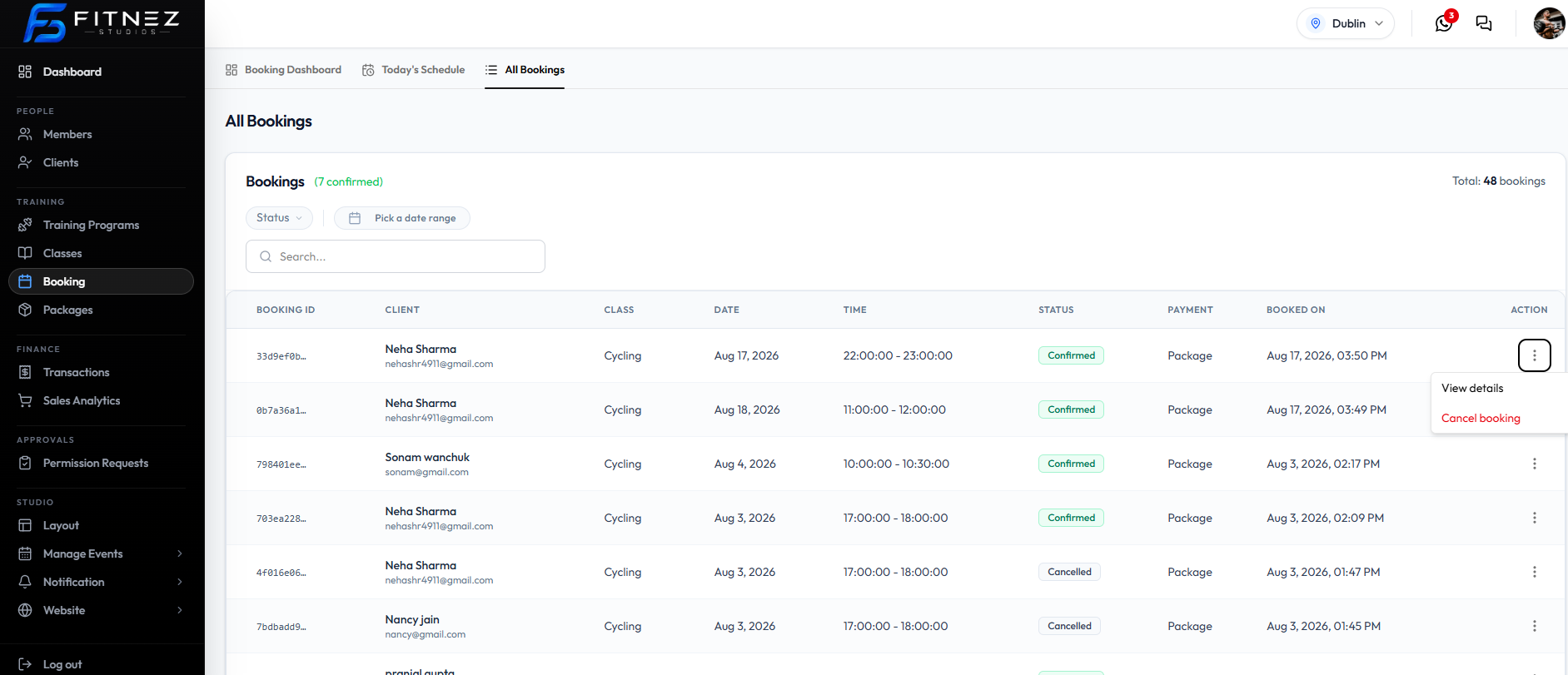
Columns: BOOKING ID, CLIENT, CLASS, DATE, TIME, STATUS, PAYMENT, BOOKED ON, ACTION.
Open a row with ⋯ → View details or Cancel booking. There is no screenshot of the View details panel yet.
By Day
Use Booking Dashboard or Today’s Schedule for today, or Pick a date range on All Bookings.
By Class
On Today’s Schedule, select the class card. On All Bookings, use the CLASS column. On Training → Classes, open ⋯ → View & manage bookings. See Class Roster.
By Client
On All Bookings, CLIENT shows name and email. On Today’s Schedule, attendees list name and email. You can also search clients under People → Clients.