Using the Activity Feed
Recent Activity on the Dashboard is the activity timeline. These four titles appear on the captured list.
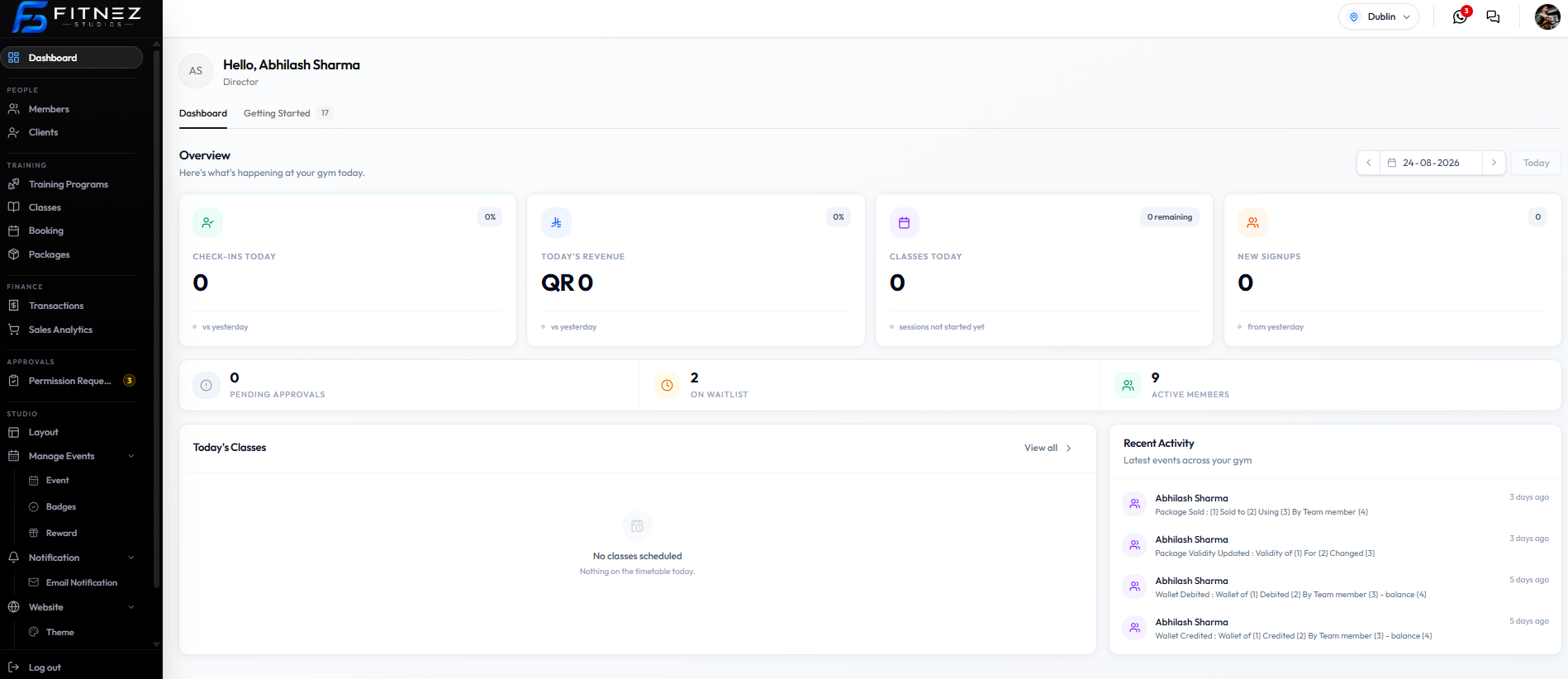
| Activity | What it means | Related record (from the wording) |
|---|---|---|
| Package Sold | A package was sold to a member, using a payment method, by a team member | Member + package |
| Package Validity Updated | Validity of a package for a member was changed | Member + package |
| Wallet Debited | Money was taken from a member wallet; a team member and a balance are mentioned | Member + wallet |
| Wallet Credited | Money was added to a member wallet; a team member and a balance are mentioned | Member + wallet |
On this screenshot the details still use (1) (2) (3) (4) instead of real names and amounts.
Booking created, booking cancelled, waitlist, and check-in are documented in Bookings but they do not appear on these Recent Activity captures. Do not say the Dashboard logs every booking.
Email Event Types use names such as Package Purchased and Wallet Debited. The Dashboard titles here are Package Sold, Wallet Debited, and Wallet Credited — similar ideas, different labels.
Related Articles
Reading an Activity Entry
Read each row from top to bottom: who, what, when.
| Part | On this screenshot |
|---|---|
| Who | Staff name next to initials, such as Daniel Murphy |
| What | Title such as Package Sold or Wallet Credited, plus the description line |
| When | Relative time, such as 3 days ago or 5 days ago |
The description is meant to name the package, member, method, team member, or balance. On this capture those values still show as (1) (2) (3) (4).
These rows do not show a separate booking status. Confirmed and Cancelled live on All Bookings, not on Recent Activity.
Example from the Screen
Who: Daniel Murphy
What: Package Sold
When: 3 days ago
For current package or wallet figures, open the Member, Held Package, or Wallet.
Who Changed This?
Use Recent Activity when a package or wallet change looks unexpected and you need the staff name on that event.
The captured rows name a Team member in the description and show the staff person who appears on the row (for example Daniel Murphy).
Step 1 — Open Dashboard
Open Dashboard. Scroll to Recent Activity.
Step 2 — Match the Event Type
Look for Package Sold, Package Validity Updated, Wallet Debited, or Wallet Credited.
Step 3 — Read the Staff Name and Time
Use the name on the row and 3 days ago / 5 days ago (or whatever relative time is shown).
Step 4 — Check the Live Record
Open the Client, Held Package, or Wallet. For a credit that needed a manager, also check Approval Requests (Wallet Credits).
You cannot filter Recent Activity by staff on this screen. Scroll the list. There is no edit or delete on a row.
Booking “who cancelled this?” is not answered here on the current captures. Use All Bookings and the class roster instead.
Open a Class from the Dashboard
Click-through from the Dashboard is on the Classes (or Today’s Classes) block, not on Recent Activity rows.
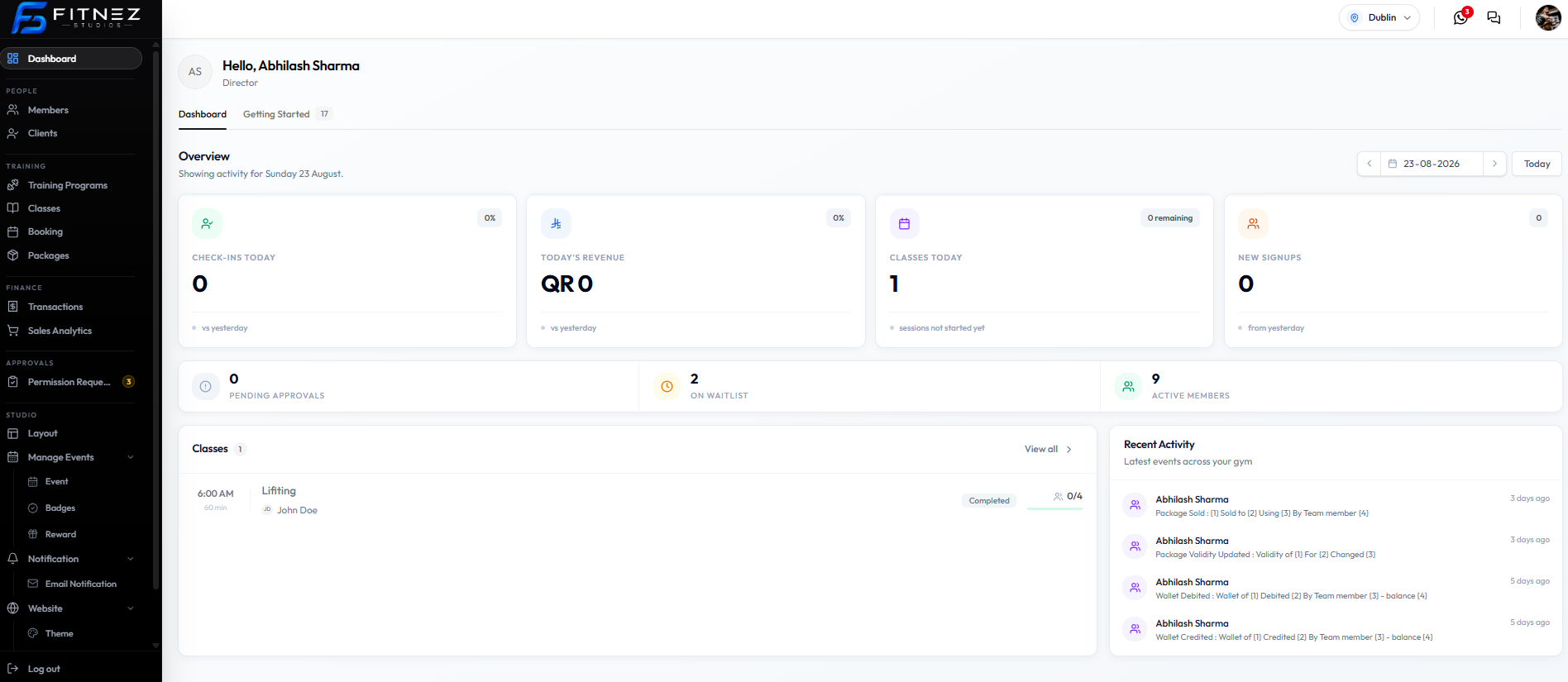
| What you click | Where you go |
|---|---|
| A class (for example Lifting) | That class’s detail page (class id in the address) |
| View all > | Class Management — Training → Classes |
On 23-08-2026 the row shows Lifting, 6:00 AM, 60 min, John Doe, Completed, 0/4.
Step 1 — Open Dashboard and Pick a Date
Use the Overview date picker if you need another day.
Step 2 — Find Classes
Bottom left. Empty state: No classes scheduled. Nothing on the timetable today.
Step 3 — Open Details or the Full List
Click the class for one session. Click View all > for the class list.
Recent Activity package and wallet rows do not open a class page on the information you provided. Use Classes for sessions; use Clients for the member record.