Discounts
A discount is a reduction on a Pricing Plan. The package stays the same. The price the member pays can be lower.
Package Versus Pricing Versus Discount
| Term | What it is |
|---|---|
| Package | The offer members buy |
| Pricing | The plan (or plans) on that offer |
| Discount | A reduction you create, then select on a pricing plan |
On Edit Package → Pricing, the Discount field can show a value such as Get 15% Off — 15%, with Edit and + Add Discount.
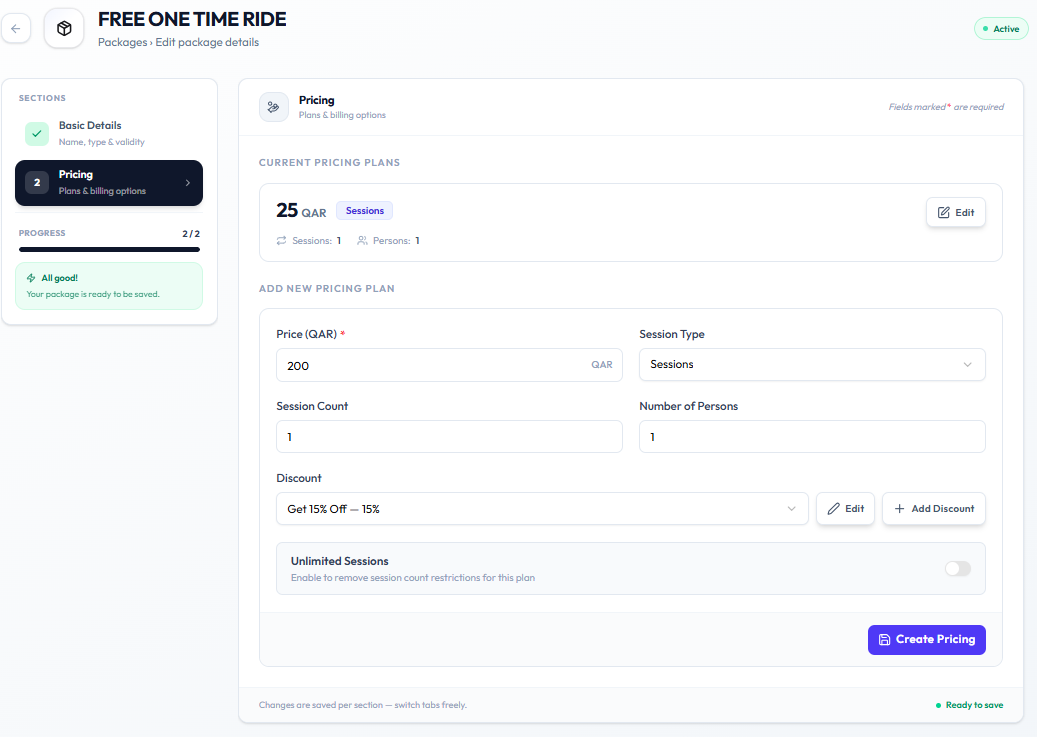
Create New Discount
+ Add Discount opens Create New Discount. Confirmed type on the form: Percentage.
See Create a Discount.
Frequently Asked Questions
Does a discount change the package?
No. The package is the offer. A discount changes what the member pays for a pricing plan.
Where do I attach a discount?
On Edit Package → Pricing, in the Discount field on the pricing plan form.
Create a Discount
Create a discount when a pricing plan should be reduced — for example Get 15% off.
Step 1 — Open Add Discount
Open Training → Packages → Edit Package → Pricing. Next to Discount, click + Add Discount.
Step 2 — Fill Create New Discount
The window title is Create New Discount. Subtitle: Fill in the details to create a new discount.
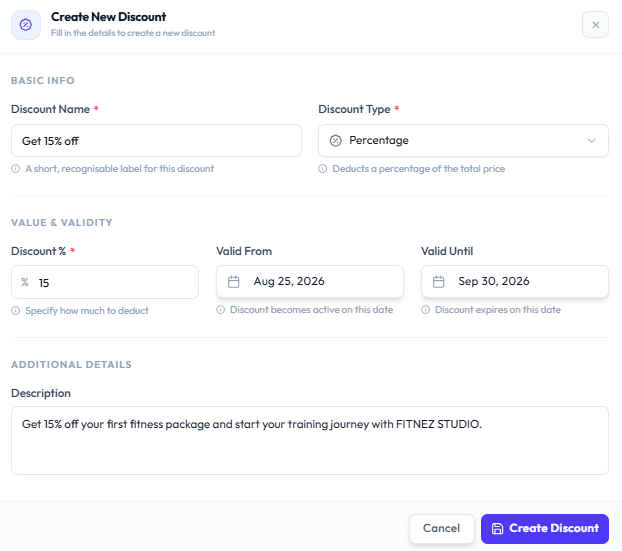
| Section | Fields |
|---|---|
| BASIC INFO | Discount Name * (for example Get 15% off). Help: A short, recognisable label for this discount. Discount Type * (for example Percentage — Deducts a percentage of the total price) |
| VALUE & VALIDITY | Discount % * (for example 15). Valid From, Valid Until |
| ADDITIONAL DETAILS | Description |
Step 3 — Create Discount
Click Create Discount, or Cancel to close without saving.
After Saving
The new discount can be selected on the pricing plan Discount field (for example Get 15% Off — 15%). See Apply a Discount.
Apply a Discount
Apply a discount when a pricing plan should use a reduction you already created — for example Get 15% Off — 15%.
Step 1 — Open the Pricing Plan
Open Training → Packages → Edit Package → Pricing.
Step 2 — Choose the Discount
In Add New Pricing Plan (or when editing a plan), open Discount and select the discount.
If the discount does not exist yet, click + Add Discount. See Create a Discount.
Step 3 — Save the Plan
Click Create Pricing for a new plan, or save the edit on an existing plan.
Edit or End a Discount
Edit a discount when the name, percentage, or dates should change. Stop using it on a plan when the promotion should no longer apply.
On Edit Package → Pricing, the Discount field has an Edit (pencil) control next to + Add Discount.
Edit
Step 1 — Open Pricing
Open Training → Packages → Edit Package → Pricing.
Step 2 — Edit the Discount
Click the pencil Edit control next to Discount, or open the discount you need to change.
Update the fields Fitnez Studio shows — the create form uses Discount Name, Discount Type, Discount %, Valid From, Valid Until, and Description. See Create a Discount.
The full edit-discount window is not captured separately. Use the labels on Create New Discount as the confirmed field names until an edit screenshot is added.
Step 3 — Save
Save the change using the action on screen.
Stop Using a Discount on a Plan
Step 1 — Open the Pricing Plan
Open Pricing for the package.
Step 2 — Clear or Change Discount
Select a different discount, or clear the Discount field if Fitnez Studio allows that.
Step 3 — Save the Plan
Save so the plan no longer uses that reduction.
Do not assume ending a discount Deletes the Package or changes remaining sessions on a member.