Book a Member Into a Class
Book a client when they should have a place on today’s session — for example Samuel Falcone into Strength & Conditioning from Today’s Schedule.
Before You Start
- Open Training → Booking and use the Today’s Schedule tab.
- The class should be on today’s list (for example Published with capacity such as 1/1 booked).
- The client must be on Clients and show as active when you search.
- For package-based classes, the client needs a usable Package, or you buy one during booking.
Steps
Step 1 — Open Today’s Schedule
Open Training → Booking, then Today’s Schedule.
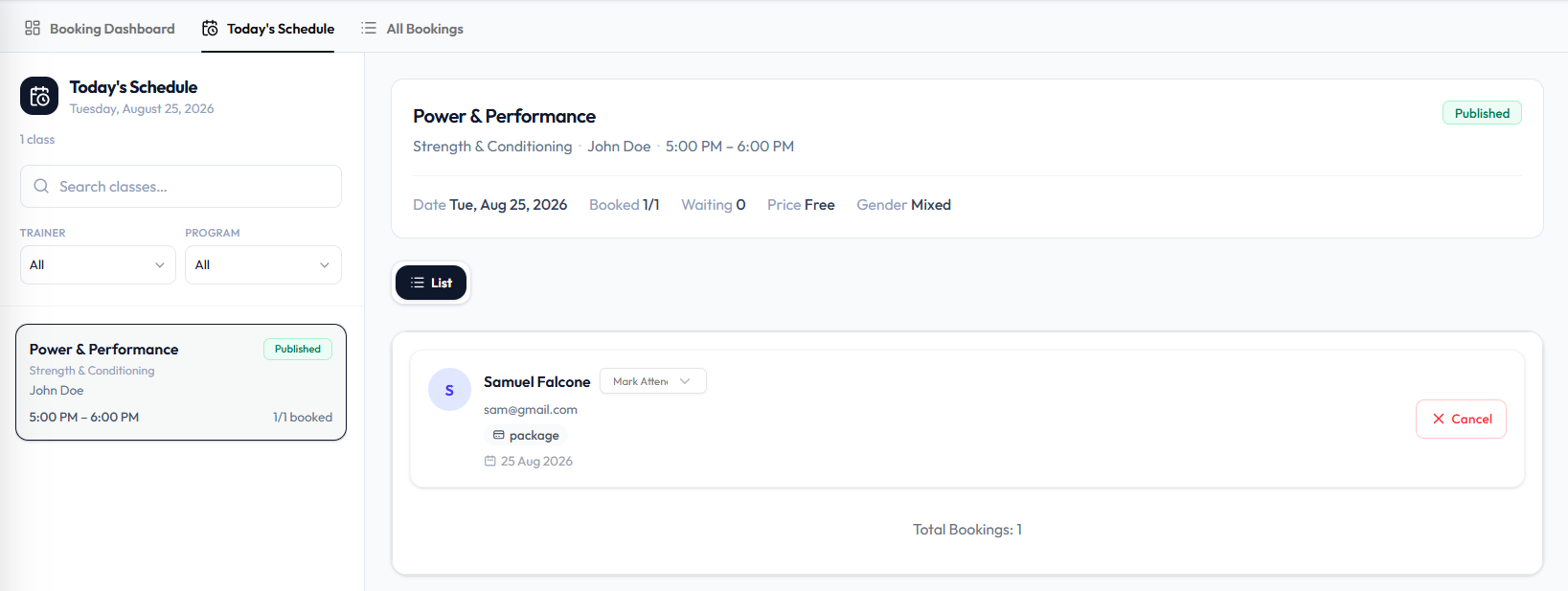
Select the class on the left (for example Power & Performance / Strength & Conditioning with trainer and time). The right panel shows class details, Booked, Waiting, and the attendee list.
Step 2 — Start Booking and Select a Client
With the class selected on Today’s Schedule, open the book action for that class. The window title is Book - Strength & Conditioning (class or program name). Subtitle: Step 1: Select a client.
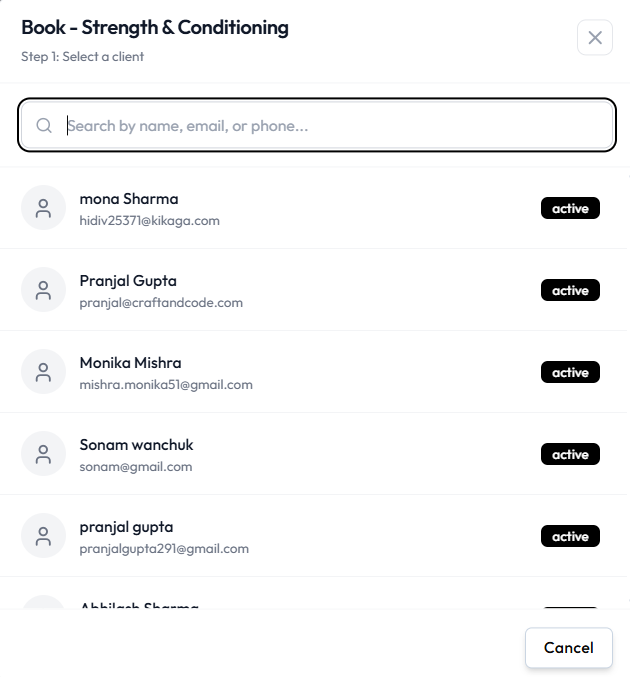
Use Search by name, email, or phone…. Each row shows the client name, email, and an active badge.
Select the client, or Cancel to close.
If the class is already full (for example 1/1 booked), free a place or use the Waiting List before you can add another booking.
Step 3 — Choose a Package
The next screen is Select Package for [client name]. Subtitle: Step 2: Choose a package.
Client already has a package
Under User Packages for [client name], select a package card (for example Peak Fit with sessions, persons, valid till, and price). A checkmark shows the selected package.
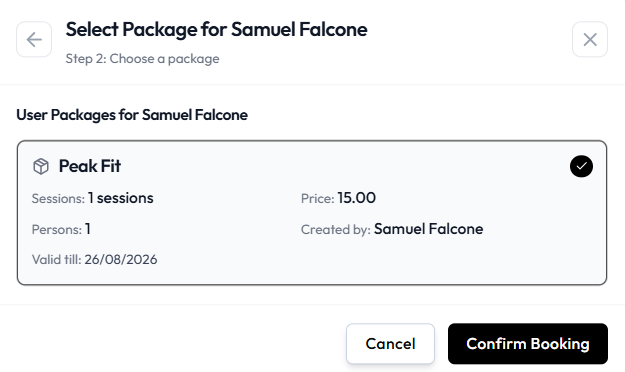
Click Confirm Booking to finish, or Cancel to close. Use the back control to return to Step 1.
Client has no package
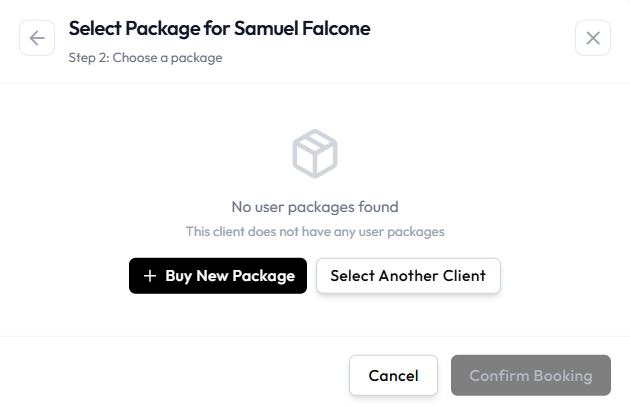
If the client has nothing to use, you see:
- No user packages found
- This client does not have any user packages
| Action | What it does |
|---|---|
| + Buy New Package | Opens Add Package so you can sell a package first |
| Select Another Client | Go back and pick a different client |
| Confirm Booking | Stays disabled until a package is available and selected |
| Cancel | Close the flow |
Step 4 — Buy a Package If Needed
+ Buy New Package opens Add Package with subtitle Available packages.
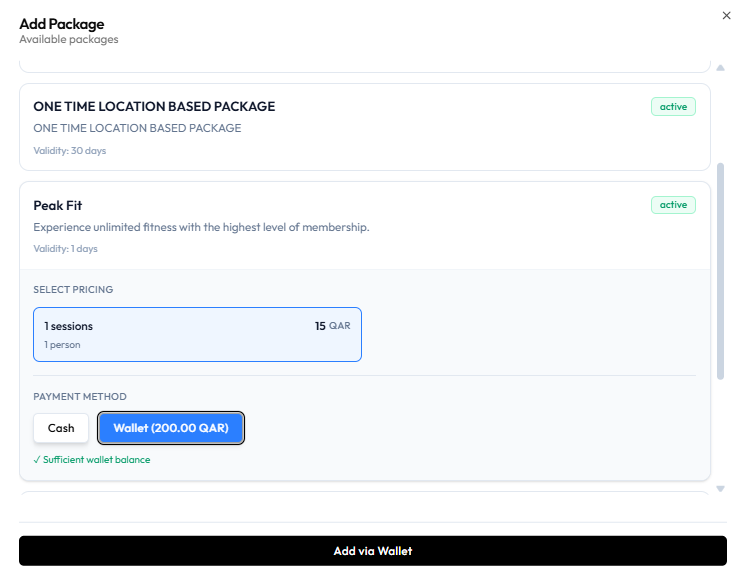
- Expand a package (for example Peak Fit with active status).
- Under SELECT PRICING, choose a plan (for example 1 sessions / 1 person / 15 QAR).
- Under PAYMENT METHOD, choose Cash or Wallet (for example Wallet (200.00 QAR)). When the wallet can cover it, the screen shows ✓ Sufficient wallet balance.
- Click the primary action (for example Add via Wallet).
Then return to Step 2, select the new user package, and click Confirm Booking.
After Booking
On Today’s Schedule, the attendee list should include the client. The capture shows name, email, Mark Attendance, payment as package, date, and Cancel.
Total Bookings updates under the list. Class Booked (for example 1/1) and capacity on the left card also update.
On All Bookings, PAYMENT can show Package and STATUS Confirmed. See View Bookings.
Spot selection during this book flow is not on these screenshots. If a class uses layout spots later, see Choose & Change Spots.