Cancel a Booking
Cancel a booking when the client should no longer hold that place.
Cancelling a booking is not the same as Deleting a Draft Class.
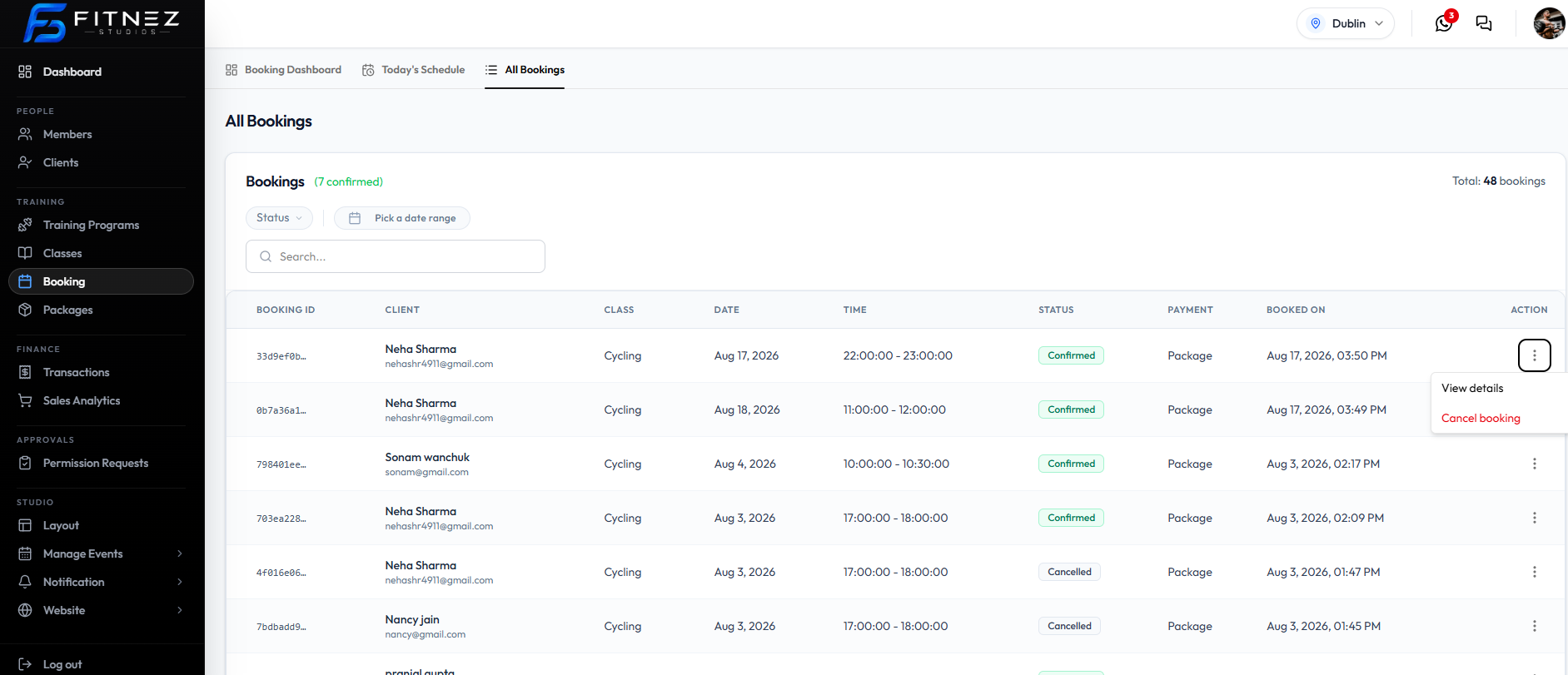
From All Bookings
Open Training → Booking → All Bookings, open the row ⋯ menu, and choose Cancel booking (red).
From the Client Bookings Tab
Open the Full Client Page → Bookings, then ⋯ → Cancel Booking.
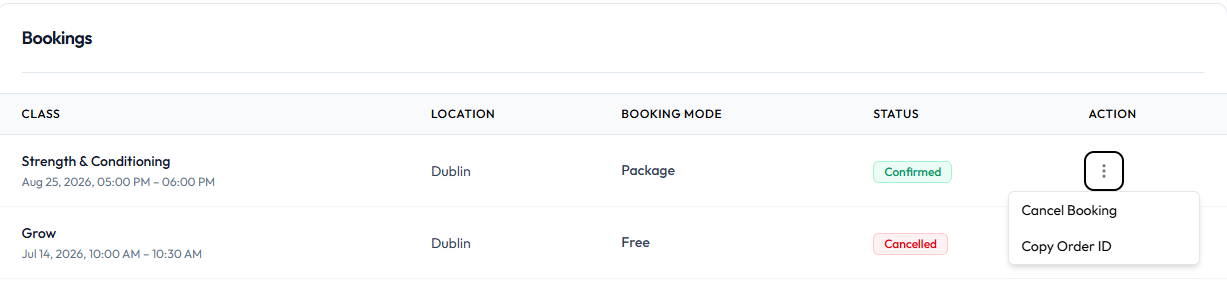
You can also Copy Order ID from that menu.
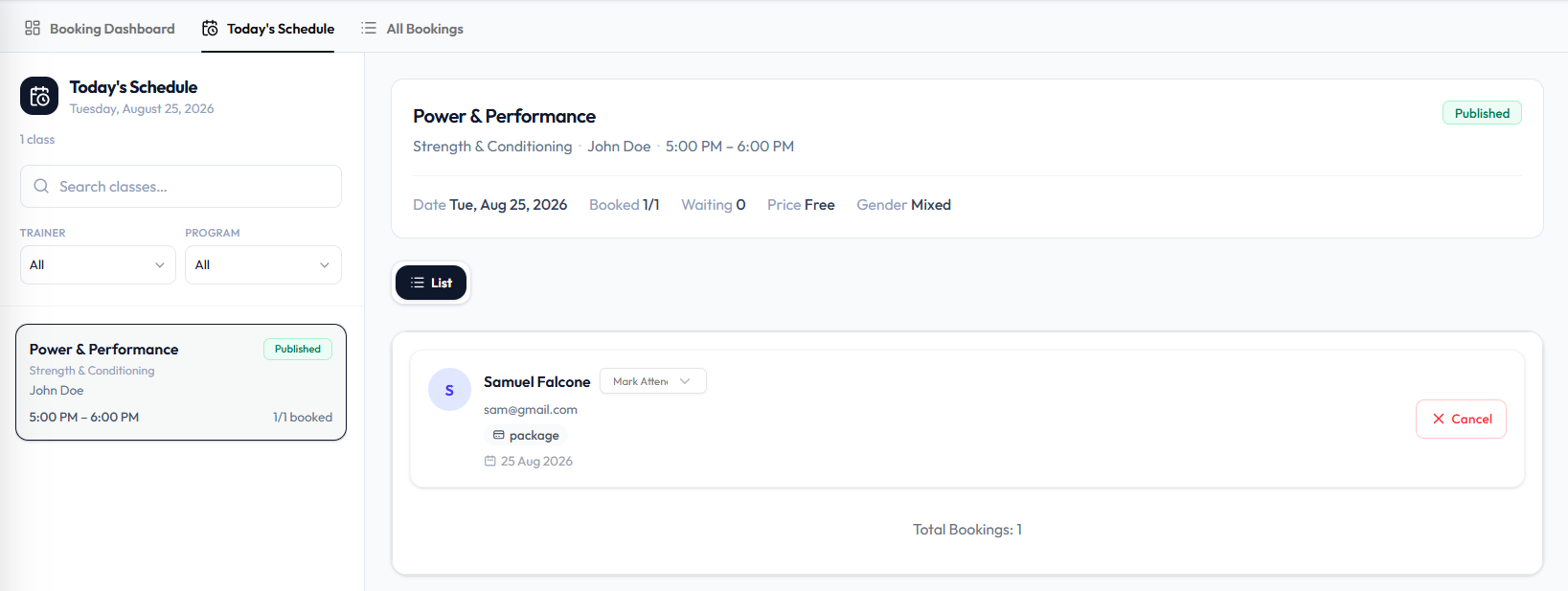
From Today’s Schedule
Open Today’s Schedule, select the class, find the attendee card, and click Cancel.
Cancellation Window
Settings may include a cancellation window (hours before the class). That value is not on these Booking screenshots.
What happens to Package Credits, fees, and the Waiting List after a cancel is not confirmed. Do not assume sessions are returned or kept.
Steps (All Bookings)
Step 1 — Find the Booking
Open Training → Booking → All Bookings. Use Status, Pick a date range, or Search… if needed.
Step 2 — Cancel
Open ⋯ and choose Cancel booking.
Step 3 — Confirm
Complete any confirmation Fitnez Studio shows.
After a successful cancel, booked counts on Today’s Schedule and class CAPACITY should drop if a place was freed. Whether someone on the waitlist moves in automatically is not confirmed.