First Login
Sign in with your email and password. After you sign in, Fitnez Studio opens the dashboard.
Before You Start
You need a Fitnez Studio account. If you cannot sign in, ask the owner or admin who invited you to check that your account is active.
Sign In
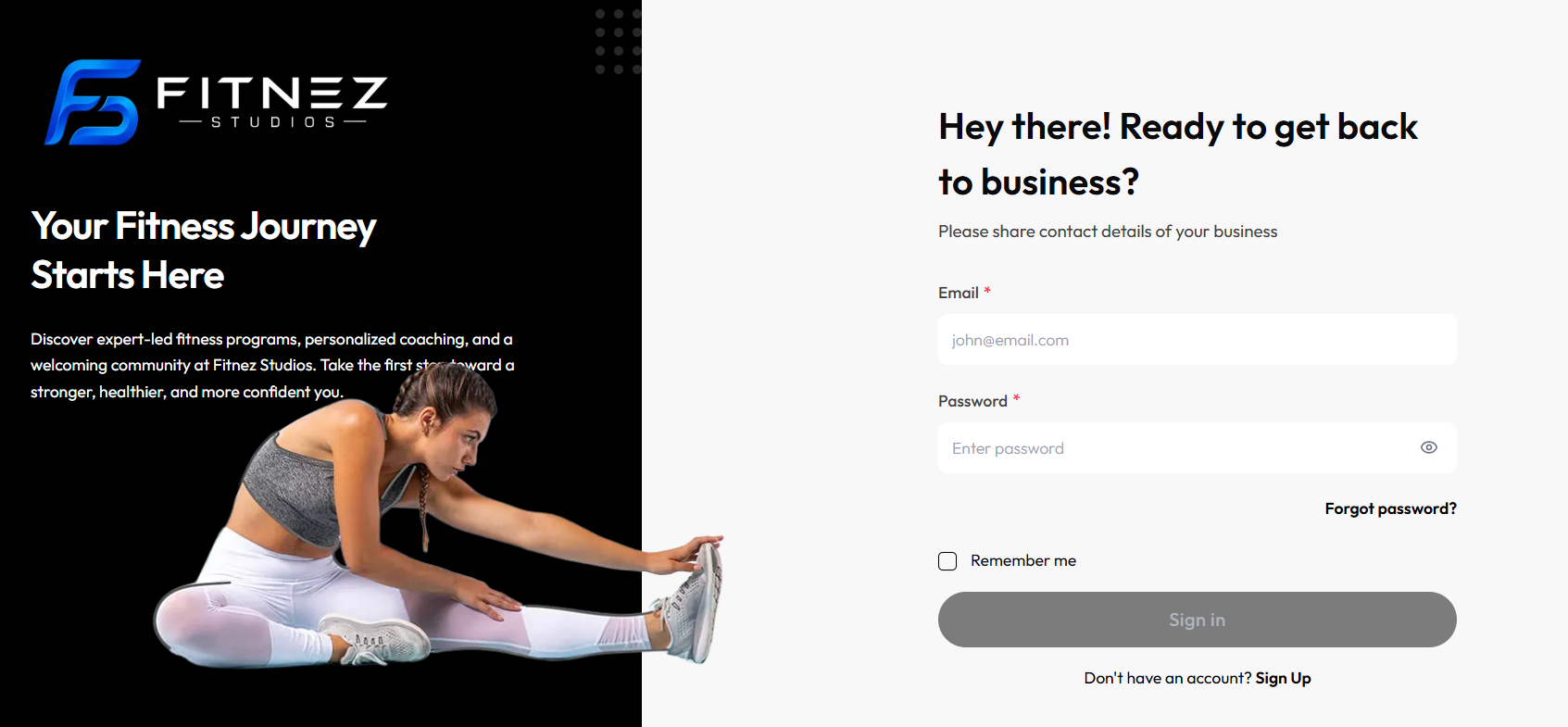
Step 1 — Open the Sign-in Page
The page is split into branding on the left and the sign-in form on the right. The form heading is Hey there! Ready to get back to business?
Step 2 — Enter Your Details
Complete the required fields (marked with *):
- Password — use the eye icon to show or hide the password
Optional:
- Remember me — stay signed in on this device
- Forgot password? — if you cannot remember your password
Step 3 — Sign In
Click Sign in.
If you do not have an account yet, use Don’t have an account? Sign Up at the bottom of the form.
Step-by-step sign-in, Invalid credentials, and Forgot password? are in Signing In and Forgot Password. Sign Up screens are not captured yet.
After You Sign In
Fitnez Studio opens the Dashboard. From there you can:
- Use the left-hand sidebar to open Members, Clients, classes, and other areas
- Use the header to switch location, open notifications, and open your profile
- Open the Getting Started tab if setup is still in progress
See Navigation & Sidebar for the full menu.
What to Do Next
- Confirm you are in the correct Location.
- Review today’s overview on Dashboard.
- Work through the Setup Checklist before you start serving members.