Recording a Cash Sale
Record a cash sale when a member pays in cash at the desk for a Package. This is different from a Gateway payment: you take the money yourself, then Fitnez Studio stores the transaction.
Record a cash sale only when payment has actually been received. Do not mark cash as paid because the member said they would pay later.
What Cash Looks Like on Transactions
On Finance → Transactions, cash package sales on the capture show:
| Column | Example |
|---|---|
| ITEM PURCHASED | Package |
| METHOD | Cash |
| GATEWAY | — |
| STATUS | Success |
| AMOUNT | Amount in QAR |
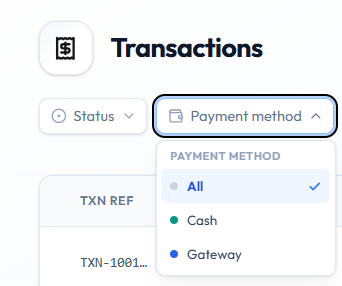
Filter with Payment method → Cash if you need only cash rows.
Before You Start
- The client exists under People → Clients
- The package is Active on Training → Packages
- You have the cash in hand
- You are in the correct Location
Selling during booking can also use Cash or Wallet on Add Package. See Book a Member.
Workflow — Record a Cash Sale
Step 1 — Open the Member or Package Sale Path
Open People → Clients (or the sell/assign path Fitnez Studio shows from Packages).
Step 2 — Select the Package
Choose the offer and price (catalogue amounts are in QAR).
Step 3 — Choose Cash
Select Cash as the payment method when the form lists methods.
Step 4 — Confirm Only After You Have the Money
Complete the confirmation Fitnez Studio shows.
The Transactions list confirms how cash sales appear after recording. The sell-package form itself may still vary by path (client profile, packages, or booking Add Package).
What Happens Next?
| Check | Where |
|---|---|
| Sale appears | Finance → Transactions — METHOD Cash, STATUS Success |
| Invoice | ⋯ → Download invoice or Send invoice |
| Package access | Packages the Member Holds |