Edit, Duplicate & Delete a Package
Edit a package when the offer should change — name, type, validity, terms, features, pricing, or discounts.
On Training → Packages, each grid card has Edit Package.
Steps
Step 1 — Find the Package
Open Training → Packages. Use All Packages, Public, or Private, and grid or list view to find the offer.
Step 2 — Open Edit Package
Click Edit Package on the card.
The header shows the package name (for example FREE ONE TIME RIDE), breadcrumbs Packages > Edit package details, and an Active badge when the package is active.
Edit has two sections in the left sidebar:
| Section | Helper | Progress |
|---|---|---|
| Basic Details | Name, type & validity | 1/2 |
| Pricing | Plans & billing options | 2/2 |
Footer note: Changes are saved per section — switch tabs freely.
Step 3 — Basic Details
Complete the Basic Details form.
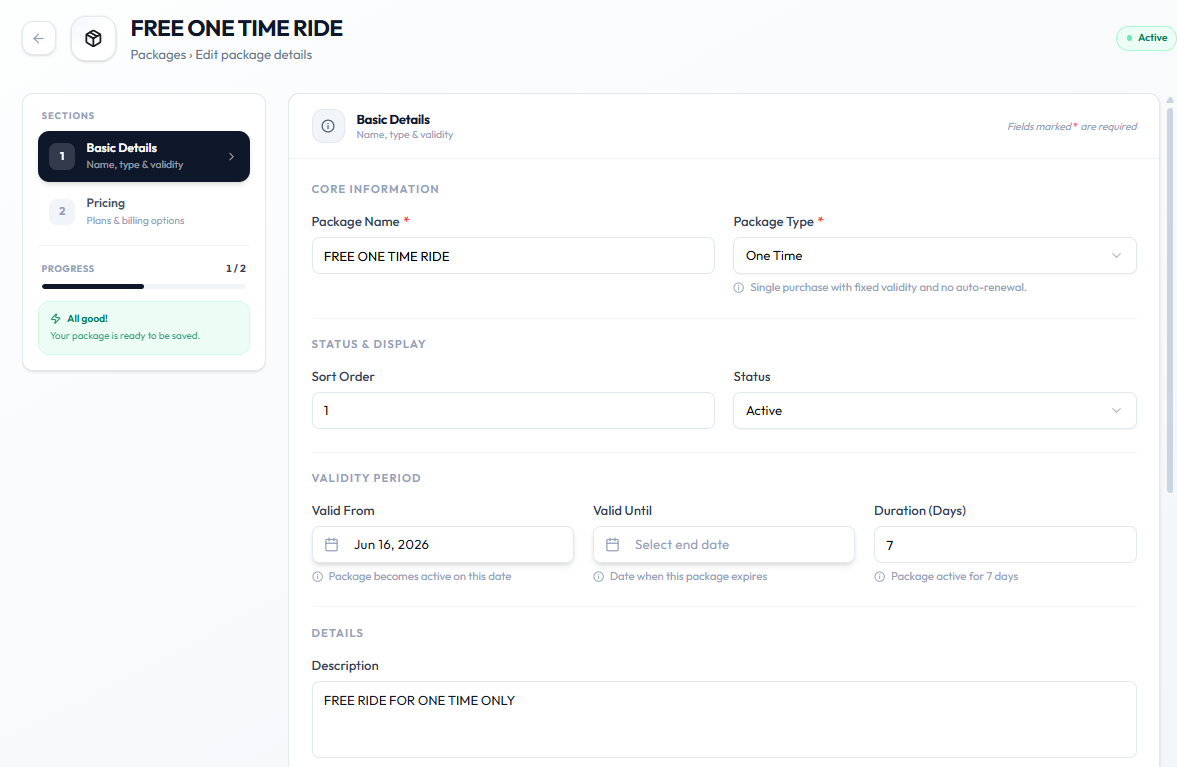
| Area | Fields on the capture |
|---|---|
| Core information | Package Name *, Package Type * (for example One Time — Single purchase with fixed validity and no auto-renewal.) |
| Status & display | Sort Order, Status (for example Active) |
| Validity period | Valid From, Valid Until, Duration (Days) |
| Details | Description |
Scroll further on Basic Details for terms and features:
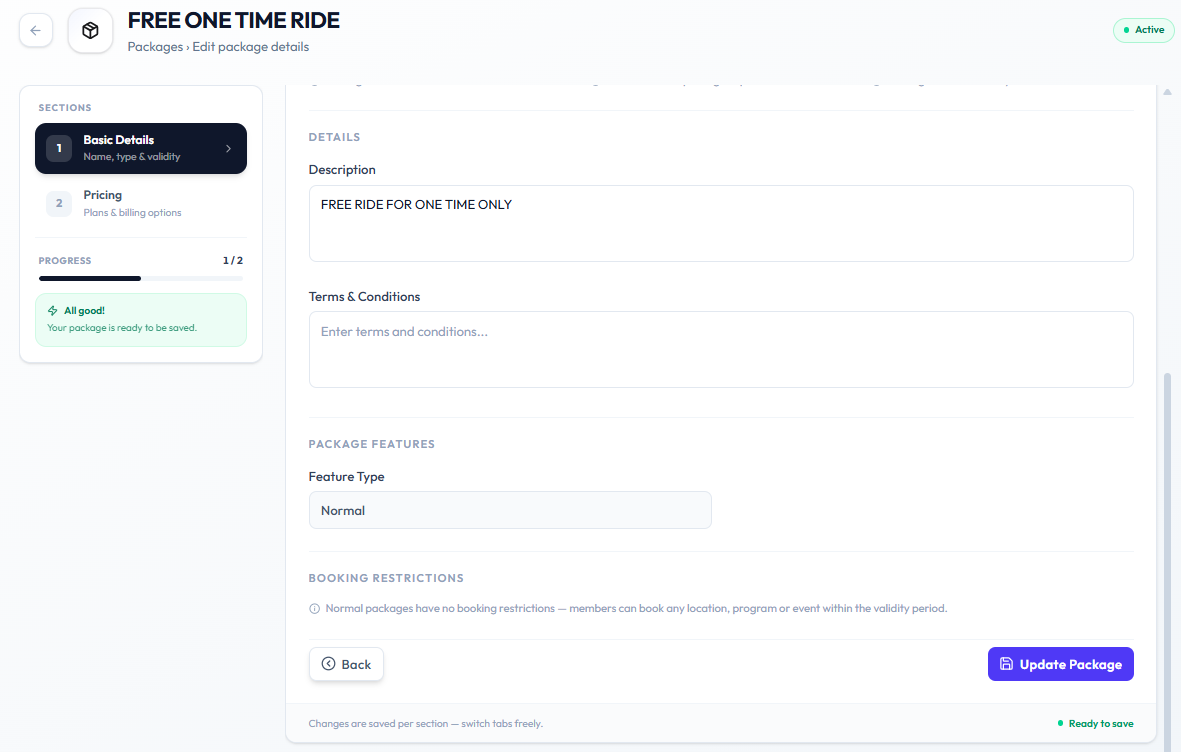
| Area | Fields on the capture |
|---|---|
| Details | Description, Terms & Conditions |
| Package features | Feature Type (for example Normal) |
| Booking restrictions | For Normal: Normal packages have no booking restrictions — members can book any location, program or event within the validity period. |
Click Update Package when you finish this section, or switch to Pricing. The sidebar can show: All good! Your package is ready to be saved.
Step 4 — Pricing
Open Pricing in the sections list (progress 2/2).
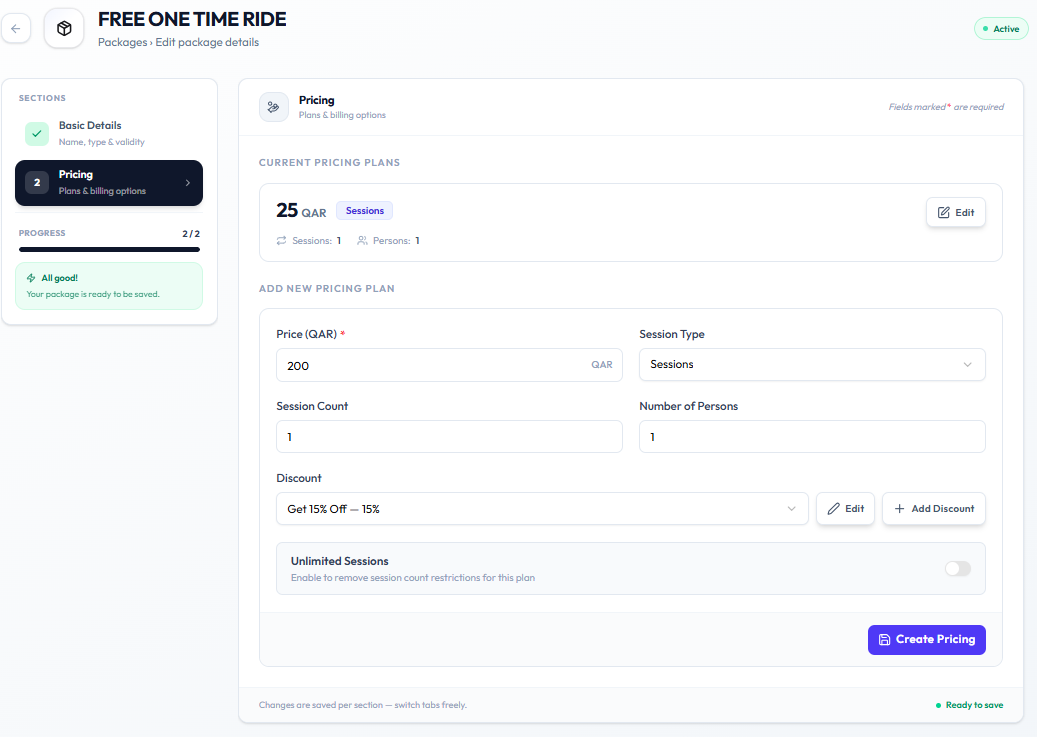
Current Pricing Plans lists plans already on the package (for example 25 QAR Sessions with Sessions: 1 and Persons: 1). Use Edit on a plan to change it.
Under Add New Pricing Plan:
| Field | Notes |
|---|---|
| Price (QAR) * | Required amount |
| Session Type | For example Sessions |
| Session Count | Number of sessions |
| Number of Persons | How many people the plan covers |
| Discount | Choose an existing discount (for example Get 15% Off — 15%), or use + Add Discount. See Create a Discount |
| Unlimited Sessions | Toggle. Help text: Enable to remove session count restrictions for this plan. |
Click Create Pricing to add the plan.
After Saving
The catalogue card should show the updated name, price, sessions, and validity.
Whether members who already hold the package keep the old terms is not confirmed. For one member’s sessions or validity, see Packages on a Member.
Related Articles
Duplicate a Package
Duplicate a package when you need another offer like one you already have — for example a second location-based pack with a different name or price.
On the grid card, use the duplicate icon (overlapping squares) next to Edit Package.
Step 1 — Find the Package
Open Training → Packages and select the card to copy — for example ONE TIME LOCATION BASED PACKAGE.
Step 2 — Open Duplicate Package
Click the duplicate icon. The dialog title is Duplicate Package.
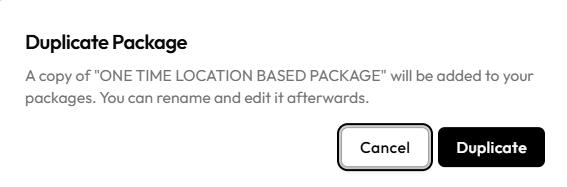
The message is: A copy of ‘ONE TIME LOCATION BASED PACKAGE’ will be added to your packages. You can rename and edit it afterwards.
Step 3 — Confirm or Cancel
Click Duplicate to add the copy, or Cancel to close without copying.
Step 4 — Rename and Edit the Copy
Open the new card with Edit Package and change the name, price, or other details so staff can tell it from the original. See Edit a Package.
After Duplicating
A new package is added to the catalogue. Rename and edit it afterwards as the dialog says.
Delete a Package
Delete a package only when the offer should no longer exist. To stop selling it without removing history, the topic plan uses Blocked. See Package Statuses.
The Packages cards show Edit Package, a chart icon, and a duplicate icon. There is no delete action on the current screenshot.
What happens to members who already hold the package — remaining sessions, bookings, and purchase history — is not shown. Confirm the result in Fitnez Studio before you delete a package that has been sold.
Step 1 — Find the Package
Open Training → Packages and select the card.
Step 2 — Delete
Use Delete if Fitnez Studio shows it — on the card, in Edit Package, or in another menu.
Step 3 — Confirm
Read the confirmation before you continue.
There is no screenshot of Delete. This guide does not describe the button, confirmation text, or whether the package can be restored.
Do not assume delete and Blocked do the same thing. Do not assume members are notified.