Edit a Training Program
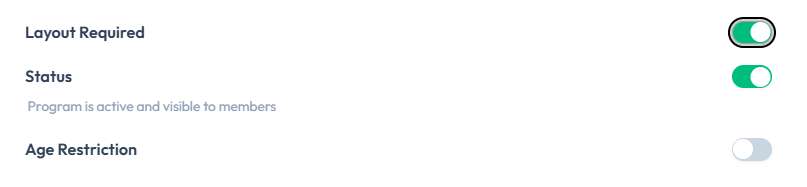
Use this when a program’s name, details, or settings should change — for example updating Program Title or turning Layout Required on.
Steps
Step 1 — Find the Program
Open Training → Training Programs. Use Search or the Active / Inactive filter if needed.
Step 2 — Open Edit Program
On the program card, click the pencil control.
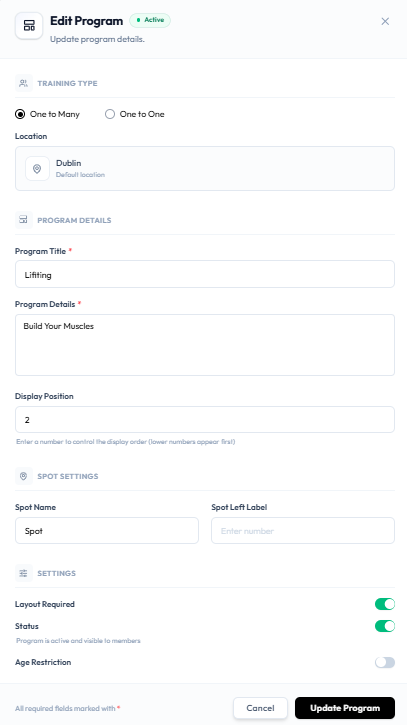
The window title is Edit Program, with subtitle Update program details. An Active badge appears when status is on.
Step 3 — Update the Details
The same sections as create are available:
- TRAINING TYPE — One to Many or One to One, plus Default location
- PROGRAM DETAILS — Program Title *, Program Details *, Display Position
- SPOT SETTINGS — Spot Name, Spot Left Label
- SETTINGS — Layout Required, Status, Age Restriction
To change only the cover image from the list, use Change image on the card instead. See Add a Training Program Image.
Step 4 — Save
Use Cancel to close without saving, or Update Program to save.
After Saving
The programs list should show the new title, details, and tags (Group / 1-on-1, Layout, age range).
What happens to classes that already use this program when you rename it is not shown in these screenshots. Confirm the result in Fitnez Studio before you rename a program that already has sessions.