Assign Trainers
Each class has a trainer — the team member who runs the session. On Class Management this appears in the TRAINER column.
Where the Trainer Appears
Open Training → Classes. Each row shows the trainer’s name and an initial avatar.
Written examples in this help centre use names such as Olivia Bennett or James Wilson. The current screenshots show trainers such as John Doe and Abhilash Sharma.
Trainers are staff accounts. Add them under Team Members, not under Clients.
How to Choose a Trainer
Step 1 — Open the class
Open Training → Classes, then + Create New Class, or Edit class on an existing row.
Step 2 — Select the trainer
Under ASSIGNMENT, open Trainer. Choose a name from the list, such as Abhilash Sharma or John Doe.
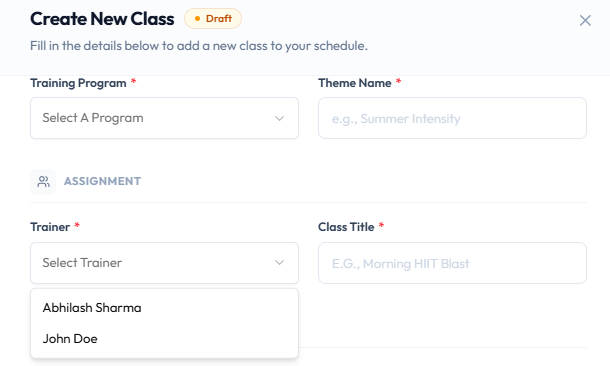
Trainer is required. The placeholder is Select Trainer.
Step 3 — Save
Save with Publish Class or Save as Draft so the TRAINER column shows the name.
After Changing the Trainer
The Class Management row should show the new trainer. Time Table lists the same people as rows. See Trainer Timetable.
If two classes overlap for the same trainer, Fitnez Studio shows: Trainer already has a class scheduled in this time slot. See Timetable Conflicts.