Manage Group Members
Use this to add a client to a group, remove them from a group, or change which groups they belong to.
A client can belong to more than one group. When you add a client, the form says: Assign this client to one or more groups. When you edit a client, GROUPS is Select Groups….
Where Membership Appears
- On the Clients list, in the GROUPS column (No Groups Assigned if none)
- On the full client page, Assign Groups and group badges (for example Multiple Classes)
- When you create a client, under Select Groups…
- When you edit a client, under GROUPS
Create and name the groups themselves on Manage Groups.
Add a Client to a Group
Step 1 — Find the client
Open People → Clients. Search for the person, such as Noah Williams.
Step 2 — Open edit
You can assign groups when you create the client.
To change groups later, open Client Detail, click the pencil, then open GROUPS.
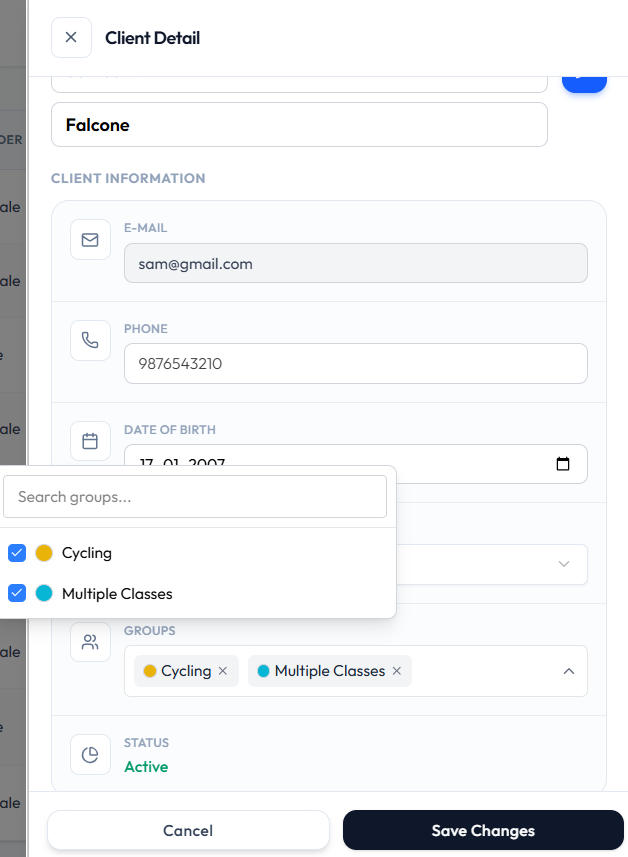
- Selected groups appear as tags, such as Cycling and Multiple Classes
- Open the list to see Search groups…
- A checkmark shows a group that is already assigned
Step 3 — Save
Click Save Changes so the GROUPS column and Client Detail show the new membership. Cancel closes without saving.
Remove a Client from a Group
Step 1 — Find the client
Open People → Clients and find the row that already shows a group.
Step 2 — Remove the group
Open Client Detail, click the pencil, then open GROUPS. Remove the tag or clear the checkmark for that group.
Step 3 — Save
Click Save Changes.
Removing a client from a group does not delete the client. You cannot delete a client. Group membership and Deactivate are different actions.
Move a Client Between Groups
Because a client can belong to more than one group, you add or remove groups rather than moving them from a single group.
To change which groups apply:
- Find the person.
- Edit their groups.
- Click Save Changes.