Previewing an Email
Use Preview (eye) on Create Template, Edit Template, or a list row so you can check layout before members receive the mail.
The preview title looks like Preview · Package Purchased. The subtitle is: Package Purchased — rendered with sample data.
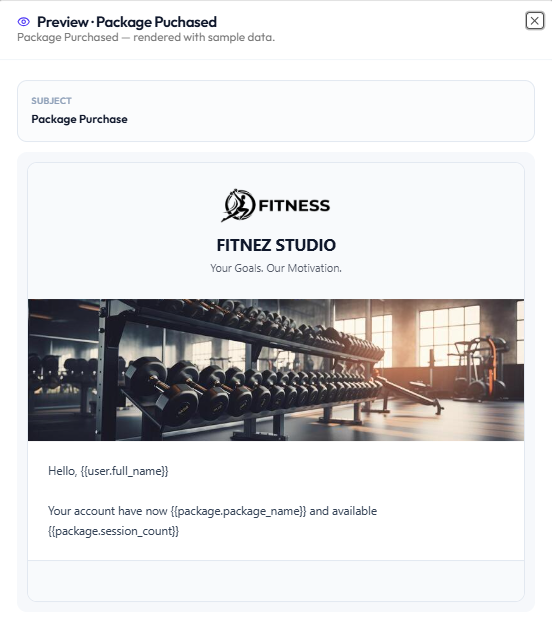
What you see
| Area | What it shows |
|---|---|
| SUBJECT | The subject line, such as Package Purchase |
| Header | Global header: logo, FITNEZ STUDIO, tagline, banner |
| Body | Your Email Body |
| Footer | Space for the global footer |
In this screenshot the body still shows {{user.full_name}}, {{package.package_name}}, and {{package.session_count}}. Check that every token is one you inserted from DYNAMIC VARIABLES.
Preview does not send mail to Emma Wilson. There is no send-test button on this modal.
Workflow — Preview an Email
Email Template → Preview → Review → X or back to editor → Save
Step 1 — Open Preview
From the list, click the eye. From Create or Edit, click Preview.
Step 2 — Check
- Subject
- Header logo, name, tagline, banner
- Body wording and tokens
- Footer when it is configured
Step 3 — Close and fix
Close with X. Edit if needed, then Save Changes or Create Template.
Related Articles
Last updated on