Add an Event Image
Event banners help members recognise September Fitness Challenge or HIIT Blast on the Events list and in LIVE PREVIEW.
This page summarises the media workflow. Full event steps live in Adding an Event Image.
Workflow
Events → Edit Event → Event Banner → Upload → Zoom and reposition → Save image → Update Event
Step 1 — Open the event
Studio → Manage Events → Event, then Edit Event for your event.
Step 2 — Open Update Event Banner
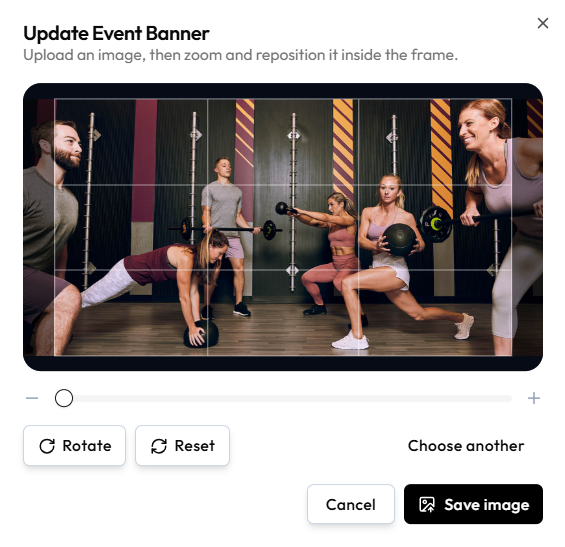
Use Event Banner on Basics. The modal title is Update Event Banner.
Upload an image, then zoom and reposition it inside the frame.
Step 3 — Adjust the image
| Control | Purpose |
|---|---|
| Zoom - / + | Zoom inside the frame |
| 3×3 grid | Shows the kept area |
| Rotate | Rotate the photo |
| Reset | Undo crop and zoom |
| Choose another | Pick a different file |
File types and size limits are not shown on this modal.
Step 4 — Save the banner
Click Save image, or Cancel / X to discard.
Step 5 — Update the event
Continue to Review and click Update Event so the BANNER column updates.
Where the Image Appears
- BANNER on the Events list
- Event Banner and LIVE PREVIEW on edit
- Member app placement not confirmed
Challenges use the same event flow. See Events overview.
Related Articles
Last updated on