Uploading Your Logo, Footer Logo & Favicon
Open Studio → Website → Details → Branding.
The Brand section holds the three image slots and the About text.
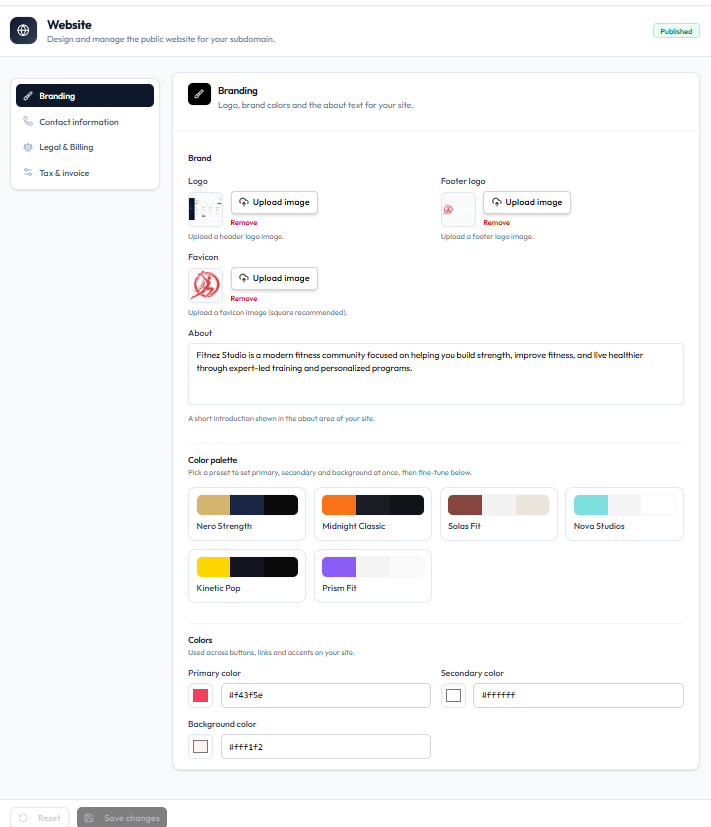
Brand Uploads
| Field | Help text on screen |
|---|---|
| Logo | Upload a header logo image |
| Footer logo | Upload a footer logo image |
| Favicon | Upload a favicon image (square recommended) |
Each slot has Upload image and Remove.
About
About is a text area. Caption: shown in the about area of the site.
Example on the capture: Fitnez Studio is a modern fitness community focused on helping you build strength…
Save
Use Reset to discard changes, or Save changes when the button is enabled.
Steps
Step 1 — Open Branding
Studio → Website → Details → Branding.
Step 2 — Upload each image
For Logo, Footer logo, and Favicon, click Upload image. Use Remove to clear an image.
Step 3 — Edit About (optional)
Update the About text for the public site.
Step 4 — Save
Click Save changes.
Related Articles
Last updated on