Attach a Layout to a Class
Attach a layout when a class should use a specific floor plan. Members then see those spots if spot reservation is on.
How Program, Layout, and Class Fit Together
The topic plan describes this chain:
- A training program defines the type of training.
- A layout defines the bookable positions.
- A class is one session that uses the program and, where supported, a layout.
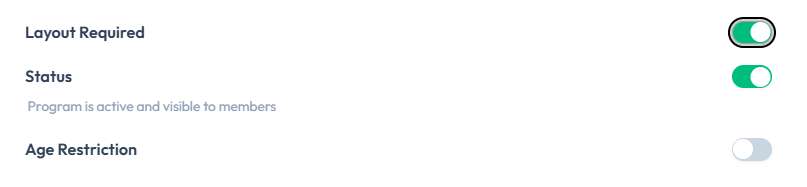
On the program form, turn on Layout Required when the program needs a layout. Whether you also pick a specific layout on the class form is not confirmed yet.
Steps
Step 1 — Open the class
Open Training → Classes, then open the class — for example Cycling on a Monday evening.
Class Management is where sessions are listed. See Classes for how class names relate to programs.
Step 2 — Choose the layout
Find the layout setting on the class. Select the layout that matches the room.
Step 3 — Save
Save the class.
There is no screenshot of a layout field on Create Class or Edit Class. This guide does not name the setting or say whether a class can run without a layout.
After Saving
The class should use that floor plan for bookings and for the class roster. Capacity on the Classes list (for example 0/4) may or may not come from the layout. Do not assume they are the same number until that is confirmed.