Editing or Deleting a Badge
Edit a badge when the name or icon should change. Delete it when it should not stay in the library.
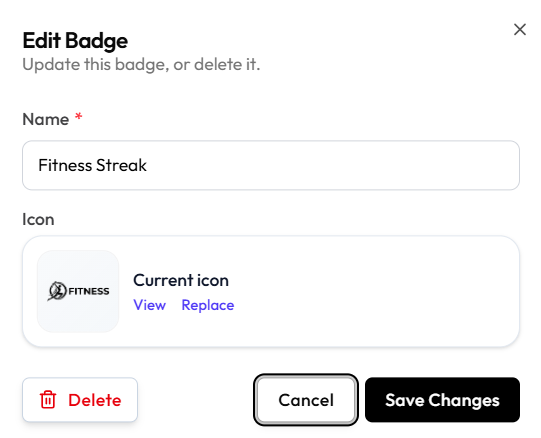
Open a badge from All Badges. The modal title is Edit Badge. The subtitle is: Update this badge, or delete it.
Edit
Step 1 — Find the badge
Open Studio → Manage Events → Badges.
Step 2 — Open Edit Badge
Open the badge, such as Fitness Streak.
Step 3 — Change and save
Update Name if needed. For Icon, use View or Replace.
Click Save Changes, or Cancel / X.
Do not assume earned badges on member records update automatically when you change the icon. Badges Awarded on the list is a count only.
Delete
Step 1 — Open Edit Badge
Find the badge and open Edit Badge.
Step 2 — Click Delete
Click Delete (red, trash icon) on the left of the footer.
Step 3 — Confirm
A warning appears: Delete this badge? This can’t be undone.
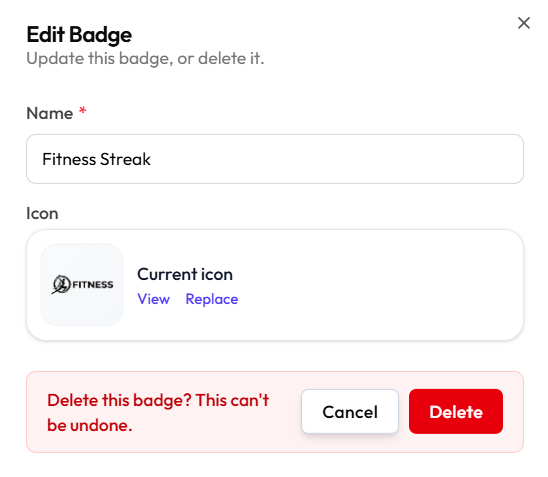
Click Delete to remove it, or Cancel to keep the badge.
What happens to challenges that already use this badge, and to badges members already earned, is not shown beyond This can’t be undone.