Edit Client Details
Use this when a client’s information has changed — a new phone number, a corrected date of birth, or a name that was entered incorrectly.
When to Use This
Edit the record so the Clients list stays accurate for contact and day-to-day front-desk work.
Do not use this page to add staff. Staff accounts are edited under Team Members.
Steps
Step 1 — Find the client
Open People → Clients. Use Search… or All Status to find the person.
Step 2 — Open Client Detail
Open the row menu (⋯) and click View Profile.
Step 3 — Open edit
On Client Detail, click the pencil next to the Active toggle.
On the full client page, click Edit in the header (next to Send Email and Assign Groups).
Step 4 — Change the details
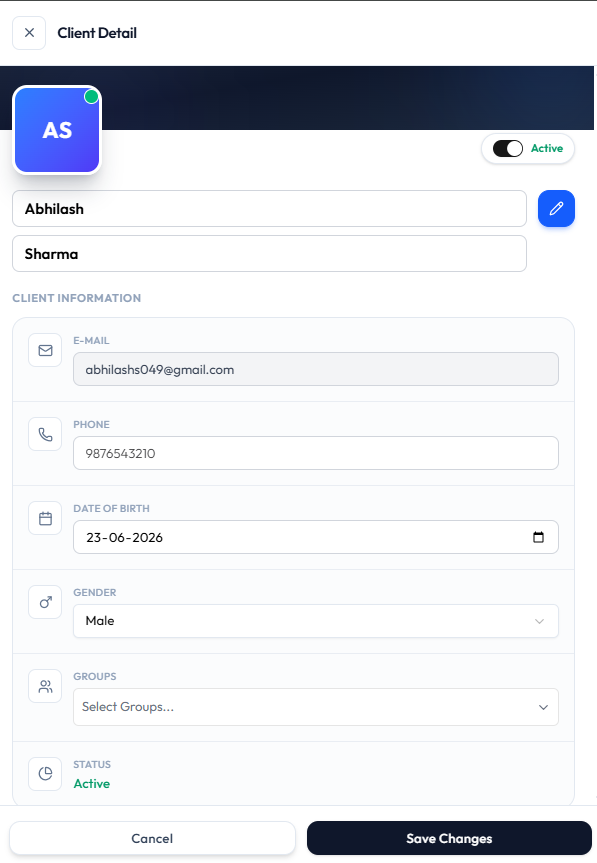
You can change:
| Field | What it is |
|---|---|
| First name and last name | The client’s name |
| Active | Status toggle |
| Email address | |
| PHONE | Phone number |
| DATE OF BIRTH | Date of birth |
| GENDER | Gender |
| GROUPS | Select Groups… — search groups, then tick groups (for example Cycling and Multiple Classes). A client can belong to more than one group. See Manage Group Members |
| STATUS | Shown as Active in this screenshot |
Step 5 — Save changes
- Save Changes saves the record
- Cancel or the X closes without saving
After Saving
The client row and Client Detail should show the new information — for example a corrected phone number for Sophie Martin.
Important Notes
- Editing a client does not turn them into staff. That is a team member action.
- To stop a client without removing the record, use Deactivate.
- You cannot delete a client. See Delete a Client.
Related Articles
Last updated on