Edit a Class
Edit a class when the trainer, title, payment type, waitlist, gender, or status should change.
You cannot change the date or time after the class is created.
Steps
Step 1 — Find the class
Open Training → Classes. Use filters such as Upcoming Classes or Draft Classes if you need to narrow the list.
Step 2 — Open Edit class
Open the row menu (⋯) and choose Edit class.
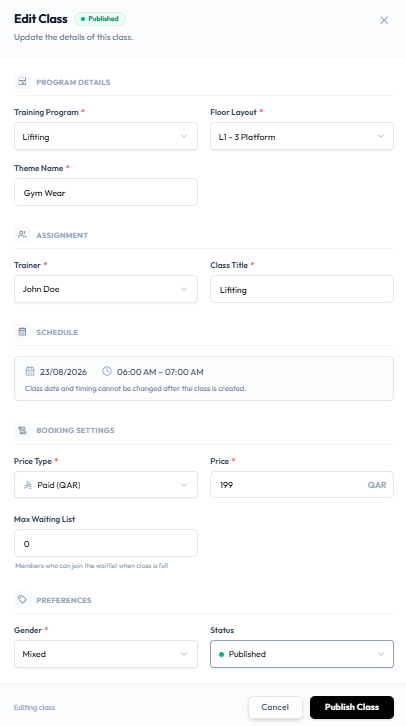
The form title is Edit Class. The subtitle is: Update the details of this class.
Step 3 — Change the details
You can update PROGRAM DETAILS, ASSIGNMENT, BOOKING SETTINGS, and PREFERENCES — the same field groups as Create a Class.
SCHEDULE is read-only. It shows the date and time, with this note: Class date and timing cannot be changed after the class is created.
To run the same session at a different time, duplicate the class and set a new slot on the copy, or create a new class.
Whether existing bookings stay after you change a published class is not confirmed. Check Fitnez Studio before you edit a class that already has bookings.
Step 4 — Save
The footer shows Editing class. Choose Cancel or Publish Class.
If Status is Draft, the save action is Save as Draft. See Publish a Class.
After Saving
The Class Management row should show the new trainer, title, payment badge, waitlist cap, or status.