Attaching Rewards to an Event
Attach rewards on the Rewards step of a Challenge Event.
The instruction on that step is: Choose rewards from your catalog to award when participants complete this challenge. Select one or more rewards to award and assign each a tier. Lower tiers are awarded first.
You can attach one or more rewards. Lower tiers are awarded first.
If There Are No Rewards Yet
If the catalog is empty, the Rewards step shows No rewards yet.
The extra line is: Create rewards in the Rewards section first, then come back to award them as challenge rewards.
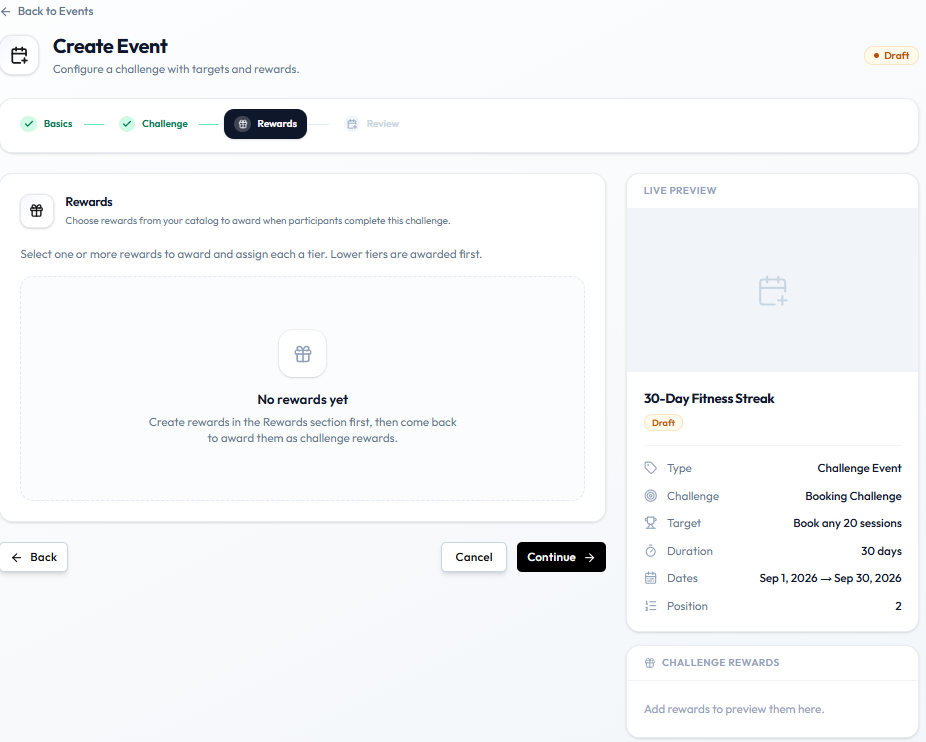
LIVE PREVIEW still says Add rewards to preview them here.
Create items on Rewards, then return to this step.
Workflow — Attach Reward to Challenge
Challenge → Rewards → Select reward → Assign tier → Continue
Step 1 — Open the challenge
On Create Event, finish Basics and Challenge, then open Rewards. Or edit an existing challenge and go to the same step.
Step 2 — Create rewards if needed
If you see No rewards yet, open Studio → Manage Events → Reward and create a reward.
The reward must be Active. Inactive rewards cannot be assigned to challenges.
Step 3 — Select rewards and tiers
Choose one or more catalog rewards and assign each a tier. Lower tiers are awarded first.
Step 4 — Continue
Click Continue to Review, then save.
There is no screenshot of the Rewards step after rewards exist (picker, tiers, preview). Screenshot to add: Rewards step with at least one reward selected and a tier assigned.
When the Reward Becomes Eligible
The step copy says rewards are awarded when participants complete this challenge. Exact timing and automatic grant are not confirmed.