Activating or Deactivating a Template
Active
The caption on Create and Edit is: Active — used for automatic sends.
Inactive
The template stays on All Templates but is not used for automatic sends.
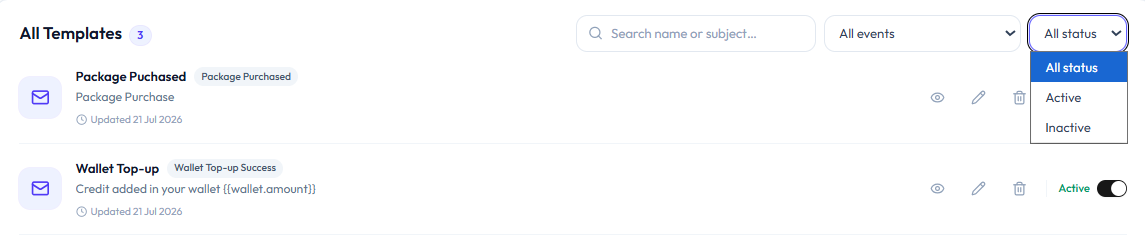
Filter the list with All status:
| Filter | What it shows |
|---|---|
| All status | Every template |
| Active | Templates that are on |
| Inactive | Templates that are off |
On each row, Active appears in green next to a toggle. Turn the toggle off to deactivate; turn it on to activate again.
Template status is the send switch
There is no separate notification-settings page in these screenshots. Active on the template is what controls automatic sends.
| Template | Result |
|---|---|
| Active | Used for automatic sends for that Event Type |
| Inactive | Not used for automatic sends; wording is kept |
Workflow — Temporarily Disable a Template
Email Templates → Toggle Active off (or Edit Template → Status off → Save Changes)
Step 1 — Find the template
Open Studio → Notification → Email Notification. Use All status if you need to find inactive rows later.
Step 2 — Deactivate
Turn the row toggle off, or open Edit Template and set Status off, then Save Changes.
Step 3 — Activate again
Turn the toggle on, or set Status to Active and save.
Useful while you rewrite wording and do not want the old text to go out.