Pause & Resume a Schedule
Pause a schedule when classes should stop generating for a period — for example a studio holiday in Melbourne — without deleting the timetable. Resume it when sessions should start again.
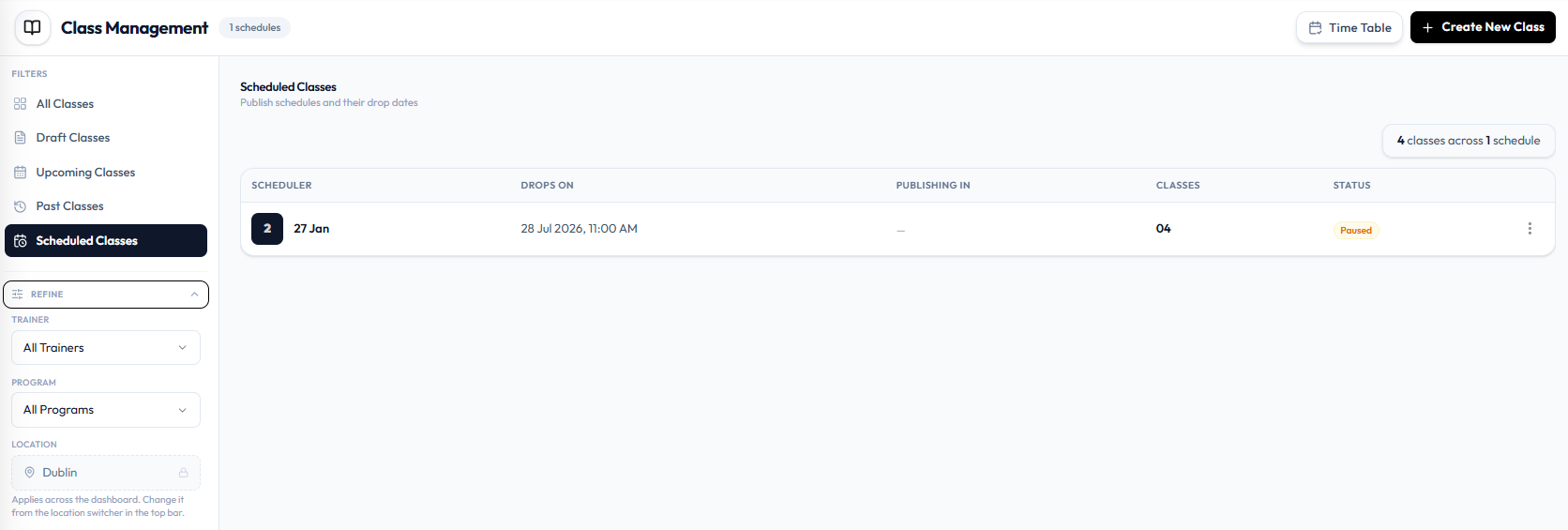
A paused timetable shows status Paused on Scheduled Classes. PUBLISHING IN shows —.
Pause
Step 1 — Open Scheduled Classes
Open Training → Classes, then Scheduled Classes.
Step 2 — Pause
Open ⋯ on the schedule row and use the pause action Fitnez Studio shows.
When the schedule is paused, STATUS is Paused and PUBLISHING IN is —.
Resume
Step 1 — Open the paused schedule
Stay on Scheduled Classes. Find the row with Paused.
Step 2 — Resume
Open ⋯ and use the resume action Fitnez Studio shows.
A running timetable shows Scheduled and a countdown under PUBLISHING IN. See View All Schedules.
Pause and Resume are not labelled on the open row menu in this screenshot. This guide does not say whether already-created classes stay on Class Management, whether members keep bookings, or whether new dates are skipped while paused.