Deleting a Template
Delete when the template should not stay on All Templates. Prefer deactivating if you might need the wording again.
The event can still exist in All events. After delete, that event has no template on the list until you create one.
Workflow — Delete a Template
All Templates → Delete (trash) → Delete template → Delete
Step 1 — Find the template
Open Studio → Notification → Email Notification.
Step 2 — Click Delete
Click the trash icon on the row.
Step 3 — Confirm
The modal title is Delete template. The text is: Are you sure you want to delete [template name]? This action cannot be undone.
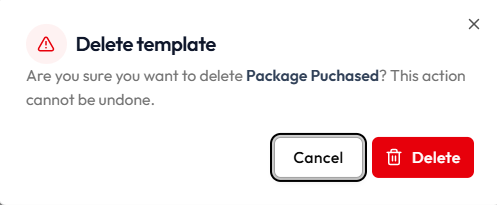
- Cancel or X keeps the template
- Delete (red) removes it
The confirmation uses the Template Name as saved. Check the name before you confirm.
Emails already received are not removed from inboxes.
Related Articles
Last updated on