Changing Your Password
Change your password on User profile while you are signed in.
Until you open the form, the Password card shows:
- Title Password
- Subtitle Update your password to keep your account secure.
- Button Change password
- Note: Your password is protected. Click Change password to update it.
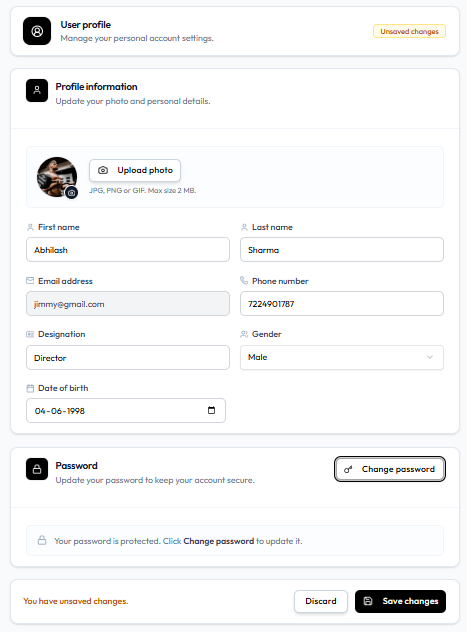
Workflow — Change Password
Header photo → Profile → Change password → Update password
Step 1 — Open Profile
Header photo → Profile, or Settings → Account → Profile.
Step 2 — Click Change password
The card then shows three fields and Cancel (key icon) in the top-right of the card.
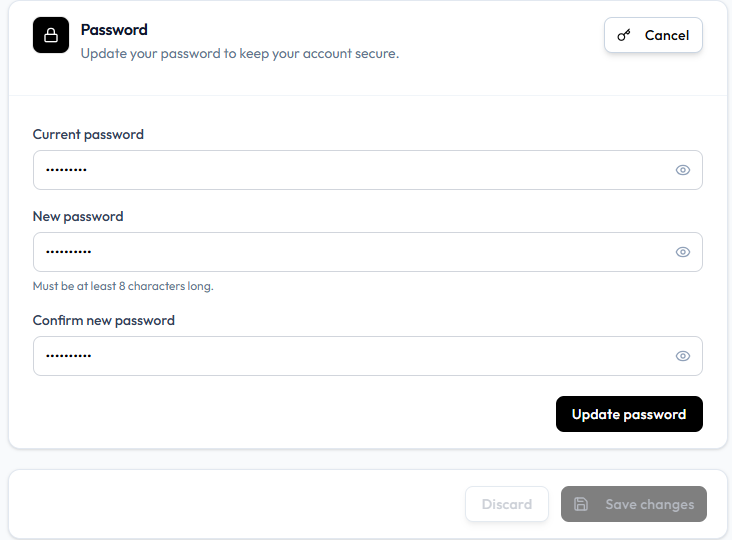
| Field | On screen |
|---|---|
| Current password | Masked, with an eye icon |
| New password | Masked, with an eye icon. Helper: Must be at least 8 characters long. |
| Confirm new password | Masked, with an eye icon |
Step 3 — Click Update password
The page footer can still show Discard and Save changes. On this capture Save changes is greyed out. Use Update password for this card.
The only password rule on this form is Must be at least 8 characters long. There is no on-screen list of uppercase, number, or special-character rules. Create Member uses At least 8 characters.
If you cannot remember the current password, sign out and use Forgot Password.
When an administrator creates your account, the form says to share the credentials and ask the person to change the password after first login. Use this page to do that.